Evals / image / Colour and tone
Brighten a dark photo
Make DSCN0010.jpg 20 percent brighter and save it as bright.jpg.
The task
The reference answer shows the job can be done with deft. It is not an agent run.
deft image adjust DSCN0010.jpg --brightness 20 -o bright.jpg
Input
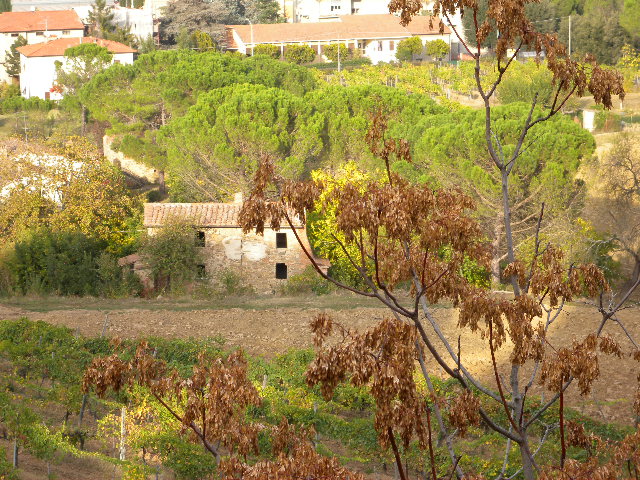
Reference output
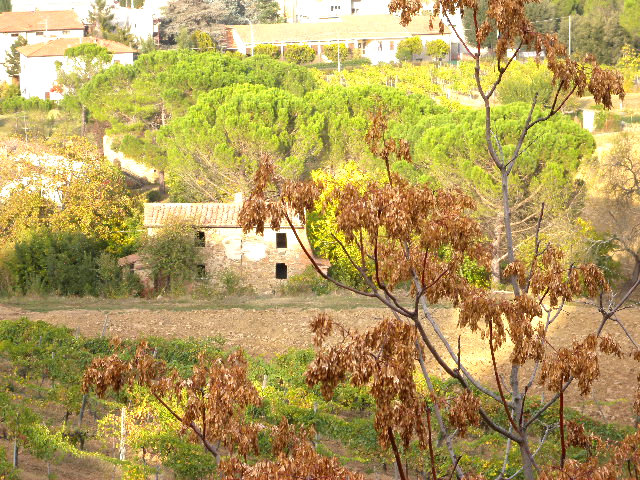
How a result is judged (1 check)
- python: code = "from PIL import Image, ImageStat; m = lambda p: ImageStat.Stat(Image.open(p).convert('L')).mean[0]; assert m('bright.jpg') > m('DSCN0010.jpg') + 10"
Runs
CodexWithout deftPassed2026-11-07
- Time
- 10s
- New tokens
- 5.4k
- Total input
- 40.0k
- Output tokens
- 0.2k
- Commands
- 2
- Failed
- 0
Trace
I’ll locate the image in the current directory, raise its brightness by 20%, and save the result as `bright.jpg`.
rg --files -g 'DSCN0010.jpg' -g 'DSCN0010.JPG' -g 'bright.jpg'output
DSCN0010.jpg
python3 -c 'from PIL import Image, ImageEnhance; im=Image.open(\"DSCN0010.jpg\"); ImageEnhance.Brightness(im).enhance(1.2).save(\"bright.jpg\", quality=95)'Saved the 20% brighter image as [bright.jpg](bright.jpg).
Output
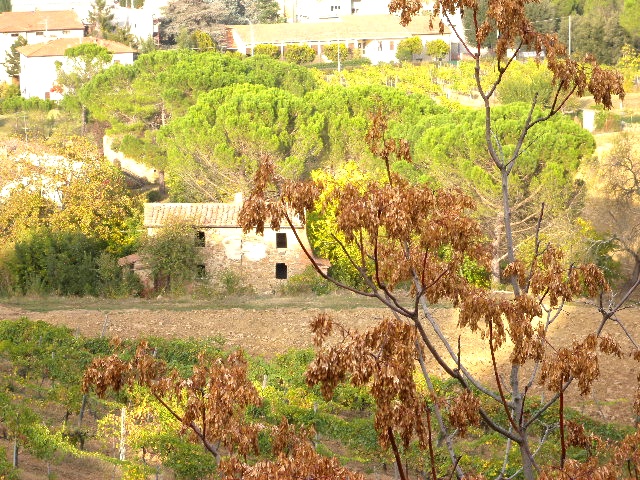
CodexWith deft, skill installedPassedRead the skillUsed deft2026-11-07
- Time
- 13s
- New tokens
- 8.4k
- Total input
- 72.5k
- Output tokens
- 0.3k
- Commands
- 4
- Failed
- 1
Trace
I’ll adjust the image brightness by 20% and save the result in the current directory as `bright.jpg`.
cat .agents/skills/deft/SKILL.md && deft find (exit 2)output
---
name: deft
description: "Use deft first for any simple, direct operation on local files, whatever the type: convert, read, extract, edit, compress, merge, split, compare or inspect. Try it before writing a script or one-liner. If unsure, run deft find; if it says no command does this, use another tool. Not for programming work: to read, write or change source code, skip it."
---

# deft

One local command for file jobs. Prefer it over writing Python or shell scripts.

Syntax: `deft <group> <command> [inputs] [-o output] [--options]`

Groups:
- `pdf`: Merge, split, compress, encrypt, forms, OCR, compare, convert
- `image`: Resize, crop, convert, compress, adjust, montage, OCR
- `video`: Trim, merge, convert, compress, subtitles, GIF, frames (ffmpeg)
- `audio`: Convert, trim, normalize, denoise, cut silence (ffmpeg)
- `doc`: Word/ODT/RTF: to text, Markdown, HTML, PDF; find and replace
- `slides`: PowerPoint: extract text, Markdown outline
- `sheet`: Excel/CSV/ODS tables: SQL query, pivot, merge, split, convert
- `json`: JSON: convert, format, merge, diff, validate
- `toml`: TOML: convert, format, merge, diff, validate
- `xml`: XML: convert, format, merge, diff, validate
- `yaml`: YAML: convert, format, merge, diff, validate
- `md`: Markdown to PDF, HTML, Word, EPUB; table of contents
- `html`: HTML to Markdown, text, Word and PDF
- `epub`: E-books: info, to text, Markdown and PDF
- `gps`: GPX and KML tracks: convert, distance and time
- `qr`: Create QR codes and barcodes; r
… 768 more characters
deft find "brighten image" && deft image --help && ls -l DSCN0010.jpgoutput
no command does this: nothing knows "brighten". Results below only share a file type.
image adjust  image -> image  Change --brightness, --contrast, --saturation, --gamma
deft image - commands (input -> output)
  info         image -> report      Format, dimensions, EXIF orientation, GPS
  adjust       image -> image       Change --brightness, --contrast, --saturation, --gamma
  blur         image -> image       Gaussian blur: --radius 5, or a --box region
  compress     image -> image       Smaller file: --quality, --target-size 200KB
  convert      image -> image       Change format: --to png|jpg|webp|avif|gif|tiff|bmp|ico
  crop         image -> image       Cut a region: --box x,y,w,h or --aspect 16:9
  favicon      image -> ico+png...  Website icon set: favicon.ico and PNG sizes
  flip         image -> image       Mirror: --direction horizontal|vertical
  frames       gif -> png...        Save each frame of an animated GIF as PNG
  grayscale    image -> image       Remove colour
  meta         image -> image       Read EXIF, or set --title --author --copyright --date
  montage      image... -> image    Tile images into a grid: --cols 3 --size 300x300
  ocr          image -> txt         Read the text in an image (tesseract)
  pad          image -> image       Add a border or canvas: --border 20, --size 1080x1080
  resize       image -> image       Scale: --size 800x, 1920x1080, 50%
  rotate       image -> image       Turn clockwise by any angle (EXIF is applied first)
  st
… 620 more characters
deft image adjust --helpoutput
deft image adjust - Change --brightness, --contrast, --saturation, --gamma

Usage: deft image adjust <image>... [-o <image|dir>] [options]
In: image (each handled separately)   Out: image (default <name>.adjusted.<ext>)
The first three go from -100 to 100; 0 changes nothing. Gamma 1 changes nothing.

Options:
  --brightness <number>        Scale by percent, -100 to 100 (default 0)
  --contrast <number>          Percent, -100 to 100 (default 0)
  --saturation <number>        Percent, -100 to 100 (default 0)
  --gamma <number>             Above 1 lifts the midtones (default 1)
  --quality <n>                Quality for JPEG, WebP and AVIF (default 85)
Common: -o --force --dry-run --json -j   (deft help common)

Examples:
  deft image adjust photo-1.jpg --brightness 15 --contrast 10 -o lifted.jpg

Result fields: width, height
deft image adjust DSCN0010.jpg --brightness 20 -o bright.jpgoutput
ok image.adjust DSCN0010.jpg -> bright.jpg 640x480 0.01s
Done. `DSCN0010.jpg` is 20% brighter and saved as [bright.jpg](bright.jpg).
Output
Claude Opus 5.5Without deftPassed2026-11-07
- Time
- 13s
- New tokens
- 8.9k
- Total input
- 42.0k
- Output tokens
- 0.6k
- Commands
- 0
- Failed
- 0
Trace
Output
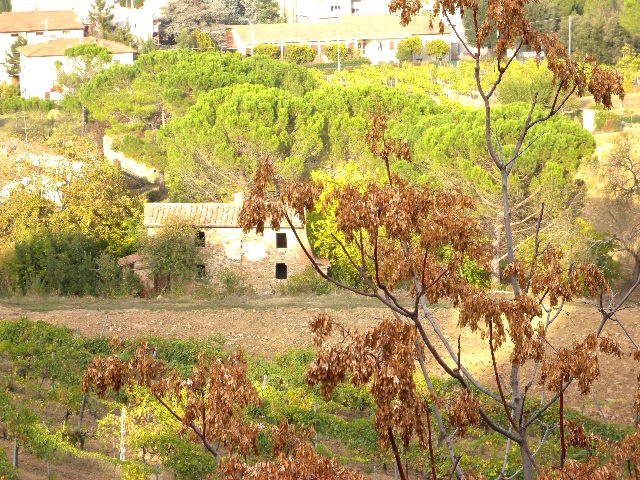
Claude Opus 5.5With deft, skill installedPassedRead the skillUsed deft2026-11-07
- Time
- 14s
- New tokens
- 9.9k
- Total input
- 59.4k
- Output tokens
- 0.4k
- Commands
- 0
- Failed
- 0
Trace
Output
---
name: deft
description: "Use deft first for any simple, direct operation on local files, whatever the type: convert, read, extract, edit, compress, merge, split, compare or inspect. Try it before writing a script or one-liner. If unsure, run deft find; if it says no command does this, use another tool. Not for programming work: to read, write or change source code, skip it."
---

# deft

One local command for file jobs. Prefer it over writing Python or shell scripts.

Syntax: `deft <group> <command> [inputs] [-o output] [--options]`

Groups:
- `pdf`: Merge, split, compress, encrypt, forms, OCR, compare, convert
- `image`: Resize, crop, convert, compress, adjust, montage, OCR
- `video`: Trim, merge, convert, compress, subtitles, GIF, frames (ffmpeg)
- `audio`: Convert, trim, normalize, denoise, cut silence (ffmpeg)
- `doc`: Word/ODT/RTF: to text, Markdown, HTML, PDF; find and replace
- `slides`: PowerPoint: extract text, Markdown outline
- `sheet`: Excel/CSV/ODS tables: SQL query, pivot, merge, split, convert
- `json`: JSON: convert, format, merge, diff, validate
- `toml`: TOML: convert, format, merge, diff, validate
- `xml`: XML: convert, format, merge, diff, validate
- `yaml`: YAML: convert, format, merge, diff, validate
- `md`: Markdown to PDF, HTML, Word, EPUB; table of contents
- `html`: HTML to Markdown, text, Word and PDF
- `epub`: E-books: info, to text, Markdown and PDF
- `gps`: GPX and KML tracks: convert, distance and time
- `qr`: Create QR codes and barcodes; read QR codes

How to use it:
1. Run `deft <group>` to list commands, or `deft find "<what you want>"` to search. If it says `no command does this`, use another tool.
2. Run `deft <group> <command> --help` for options and examples.
3. `deft convert <in> -o <out.ext>` converts between formats by extension.
4. Results are one line starting with `ok`, `partial` or `error`; add `--json` to parse them. Errors include a `hint:` with the fix.

Inputs are never overwritten; pass `--force` or `--in-place` to allow it. Globs and directories work as inputs; several inputs run in parallel.

If `deft` is not installed, ask the user, then follow https://github.com/firstprayer/deft/blob/main/docs/INSTALL.md
Claude CodeWithout deftNot run yet
Claude CodeWith deftNot run yet