Evals / image / Multi-step jobs
iPhone photo ready for a blog
Turn photo.heic from my iPhone into photo.jpg for my blog: 1600 pixels wide, same proportions, and under 300KB.
The task
The reference answer shows the job can be done with deft. It is not an agent run.
deft image resize photo.heic --size 1600x -o resized.jpg
deft image compress resized.jpg --target-size 300KB -o photo.jpg
Input
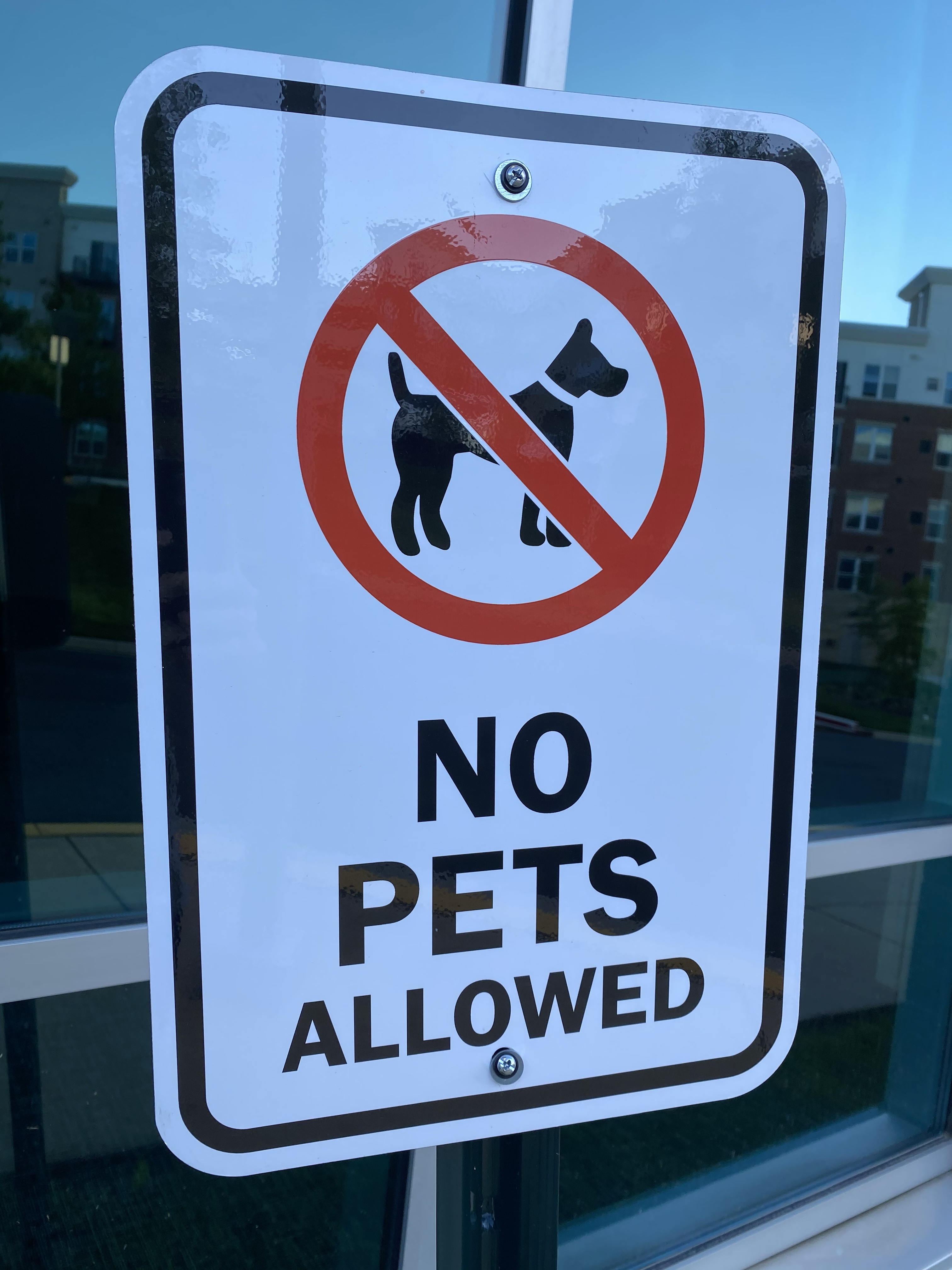
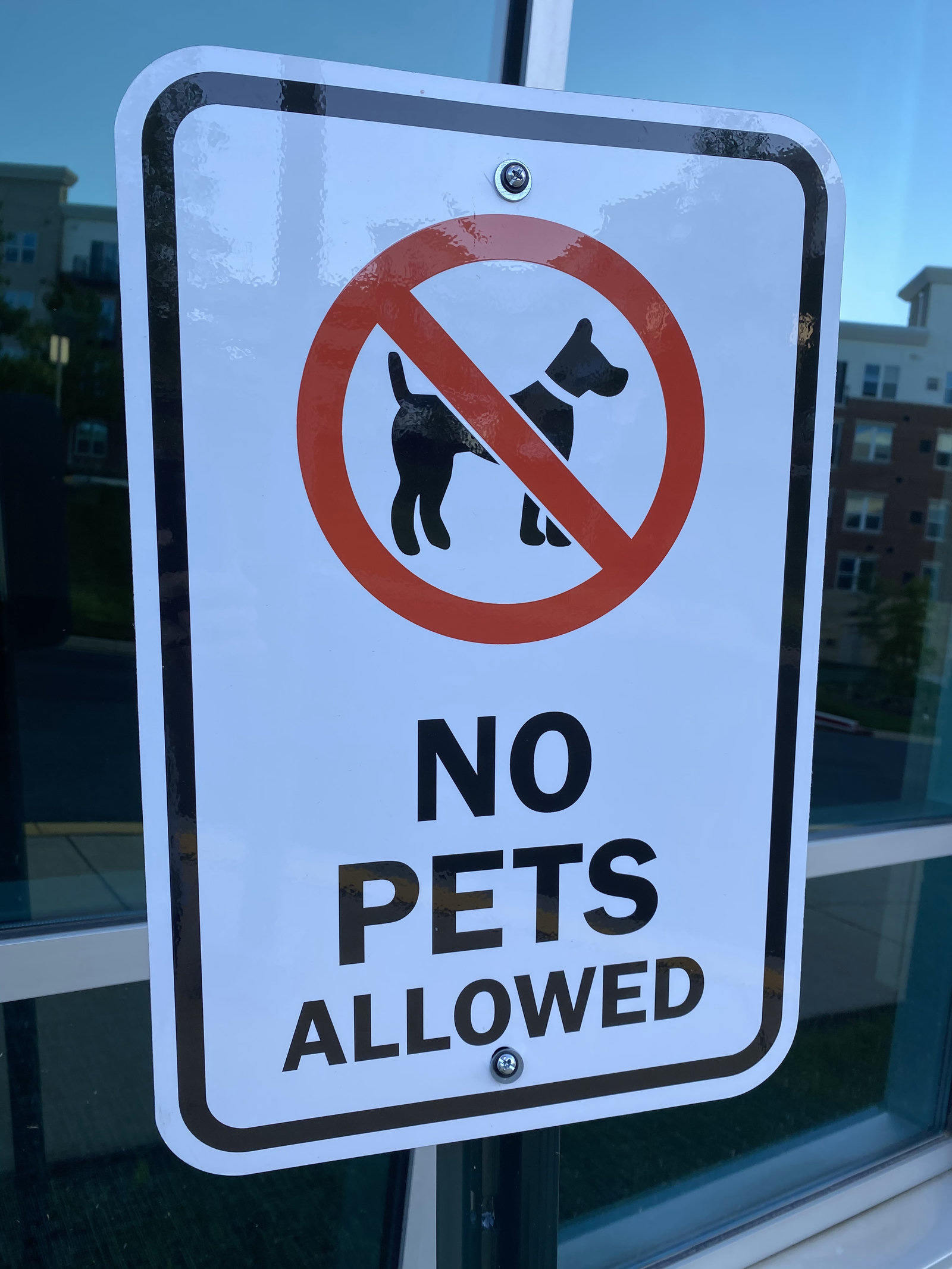
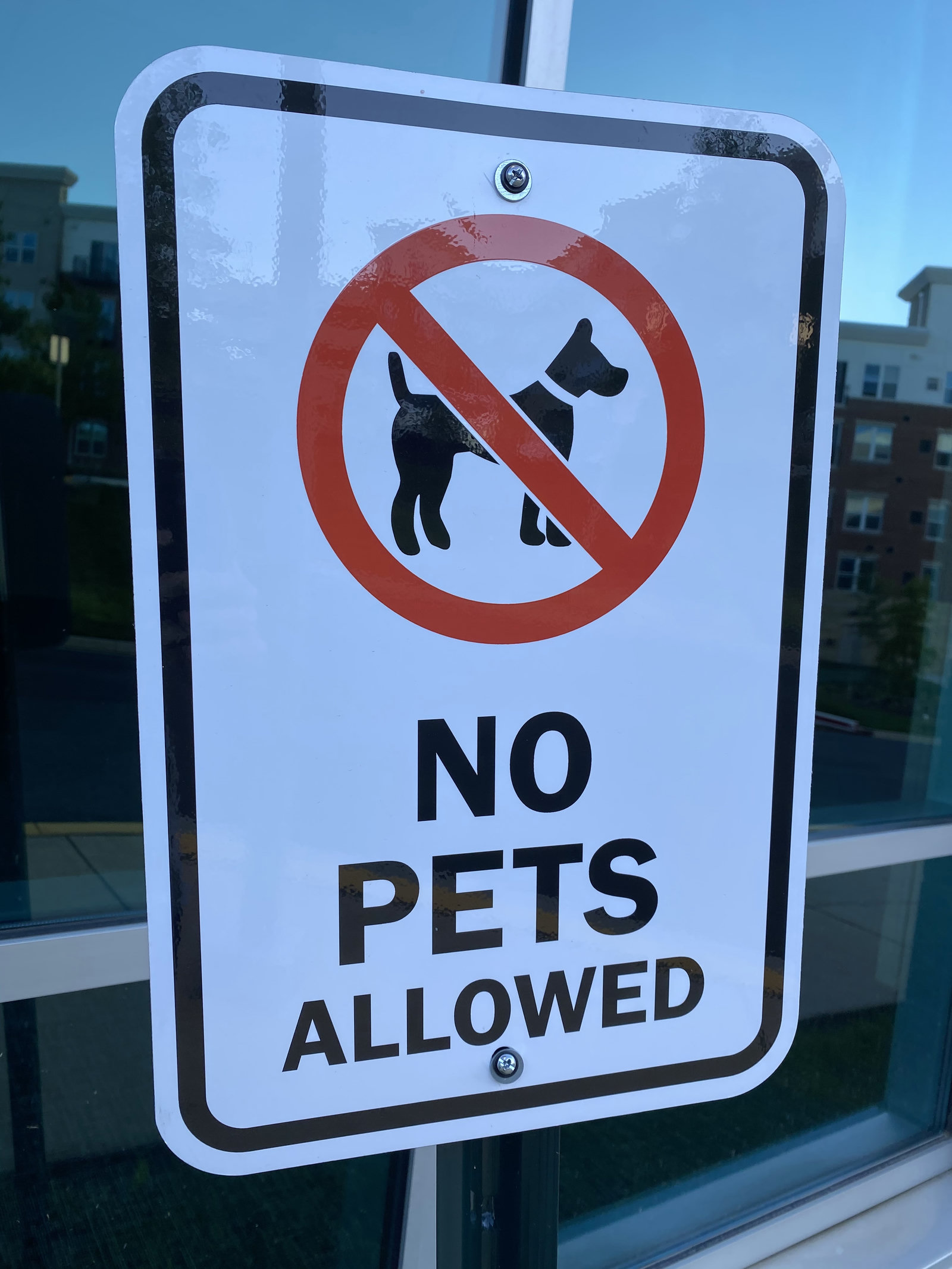

How a result is judged (2 checks)
- max_bytes: file = "photo.jpg", bytes = 307200
- python: code = "from PIL import Image, ImageStat\nim = Image.open('photo.jpg')\nassert im.format == 'JPEG', im.format\nassert im.size[0] == 1600 and abs(im.size[1] - 2133) <= 2, ('not 1600 wide in the same proportions', im.size)\nassert max(ImageStat.Stat(im.convert('L')).stddev) > 20, 'the picture is blank'\n"
Runs
Claude Opus 5.5Without deftPassed2026-11-15
- Time
- 57s
- New tokens
- 22.3k
- Total input
- 230.0k
- Output tokens
- 4.2k
- Commands
- 11
- Failed
- 3
Trace
ls -la; sips -g pixelWidth -g pixelHeight -g orientation photo.heicoutput
total 1416
drwxr-xr-x@   4 user  staff     128 Nov 14 20:01 .
drwx------@ 310 user  staff    9920 Nov 14 20:01 ..
drwxr-xr-x@   3 user  staff      96 Nov 14 20:01 .claude
-rw-r--r--@   1 user  staff  721093 Nov  7 11:44 photo.heic
photo.heic
  pixelWidth: 3024
  pixelHeight: 4032
  orientation: <nil>
for q in 85 80 75 70 65 60 55 50; do sips -s format jpeg -s formatOptions $q --resampleWidth 1600 photo.heic --out photo.jpg >/dev/null && s=$(stat -f%z photo.jpg) && echo "q=$q size=$s" && [ $s -lt 307200 ] && break; done; sips -g pixelWidth -g pixelHeight photo.jpgoutput
Error: Cannot write to file 99DB4F06-8C4D-4A17-9135-379AB76CC8E4
Error 13: an unknown error occurred
Try 'sips --help' for help using this tool
Error: Cannot write to file 8A18E8C1-AEBA-49A8-8E6D-5E3AC424E4AB
Error 13: an unknown error occurred
Try 'sips --help' for help using this tool
Error: Cannot write to file F4FDB0D1-5713-4D2C-A16D-3642FBC3668D
Error 13: an unknown error occurred
Try 'sips --help' for help using this tool
Error: Cannot write to file F1A27DBC-7721-4F4A-B747-A0045CAD172D
Error 13: an unknown error occurred
Try 'sips --help' for help using this tool
Error: Cannot write to file BD68D6FC-4B4D-40C7-BAE0-AB41C5BD9825
Error 13: an unknown error occurred
Try 'sips --help' for help using this tool
Error: Cannot write to file 577BB0AC-4FD9-4362-85B4-E9350990E28D
Error 13: an unknown error occurred
Try 'sips --help' for help using this tool
Error: Cannot write to file E9F2803F-1C4E-4F26-B5E4-85951E4B1449
Error 13: an unknown error occurred
Try 'sips --help' for help using this tool
Error: Cannot write to file A1872C59-3976-4048-9F08-002D40EA81C4
Error 13: an unknown error occurred
Try 'sips --help' for help using this tool
Warning: photo.jpg not a valid file - skipping
echo $TMPDIR; which magick convert ffmpeg heif-convert vips python3 2>/dev/null (exit 1)output
Exit code 1
<tmp>
magick not found
convert not found
/opt/homebrew/bin/ffmpeg
heif-convert not found
vips not found
~/opt/anaconda3/bin/python3
ffmpeg -v error -i photo.heic -vf scale=1600:-1 -q:v 3 -y photo.jpg && stat -f%z photo.jpg && ffprobe -v error -show_entries stream=width,height -of csv photo.jpgoutput
27216
stream,1600,1600
rm photo.jpg; ffmpeg -version | head -1; ffprobe -v error -show_stream_groups -show_entries stream=index,width,height photo.heic 2>&1 | grep -E "index|width|height|type" | head -30output
ffmpeg version 7.1.1 Copyright (c) 2000-2025 the FFmpeg developers
index=0
type=Tile Grid
coded_width=3072
coded_height=4096
width=3024
height=4032
stream_index=0
stream_index=1
stream_index=2
stream_index=3
stream_index=4
stream_index=5
stream_index=6
stream_index=7
stream_index=8
stream_index=9
stream_index=10
stream_index=11
stream_index=12
stream_index=13
stream_index=14
stream_index=15
stream_index=16
stream_index=17
stream_index=18
stream_index=19
stream_index=20
stream_index=21
stream_index=22
stream_index=23
The first ffmpeg attempt only picked up a single 512px tile, so I'm now mapping the full tile grid.
for q in 3 4 5 6 7 8; do ffmpeg -v error -i photo.heic -map 0:g:0 -vf scale=1600:-1:flags=lanczos -frames:v 1 -q:v $q -y photo.jpg || break; s=$(stat -f%z photo.jpg); echo "q=$q size=$s"; [ $s -lt 307200 ] && break; done; ffprobe -v error -show_entries stream=width,height -of csv photo.jpgoutput
[image2 @ 0x7c3c859b80] Cannot write more than one file with the same name. Are you missing the -update option or a sequence pattern?
[out#0/image2 @ 0x7c3c846e80] Error writing trailer: Invalid argument
stream,1600,1600
rm -f photo.jpg; for q in 3 4 5 6 7 8; do ffmpeg -v error -i photo.heic -map 0:g:0 -vf scale=1600:-1:flags=lanczos -frames:v 1 -update 1 -q:v $q -y photo.jpg || break; s=$(stat -f%z photo.jpg); echo "q=$q size=$s"; [ $s -lt 307200 ] && break; done; ffprobe -v error -show_entries stream=width,height -of csv photo.jpgoutput
q=3 size=55452
stream,1600,1600
rm -f photo.jpg; mkdir -p "$TMPDIR/out"; for q in 85 80 75 70 65 60; do sips -s format jpeg -s formatOptions $q --resampleWidth 1600 photo.heic --out "$TMPDIR/out/photo.jpg" >/dev/null || break; s=$(stat -f%z "$TMPDIR/out/photo.jpg"); echo "q=$q size=$s"; [ $s -lt 307200 ] && break; done; cp "$TMPDIR/out/photo.jpg" photo.jpg && sips -g pixelWidth -g pixelHeight photo.jpg && ls -l photo.jpg (exit 1)output
Exit code 1
Error: Cannot write to file 298C61CF-8606-4E69-97FF-77119E2A8D85
Error 13: an unknown error occurred
Try 'sips --help' for help using this tool
cp: <tmp> No such file or directory
python3 -c "import pillow_heif" 2>&1; python3 -c "import PIL; print(PIL.__version__)"; ffprobe -v error -show_stream_groups photo.heic 2>&1 | grep -iE "horizontal|vertical|nb_tiles|offset" | sort | uniq -c | headoutput
Traceback (most recent call last):
  File "<string>", line 1, in <module>
ModuleNotFoundError: No module named 'pillow_heif'
9.0.1
   1 horizontal_offset=0
   1 nb_tiles=48
   8 tile_horizontal_offset=0
   8 tile_horizontal_offset=1024
   8 tile_horizontal_offset=1536
   8 tile_horizontal_offset=2048
   8 tile_horizontal_offset=2560
   8 tile_horizontal_offset=512
   6 tile_vertical_offset=0
   6 tile_vertical_offset=1024
I'll stitch the 48 tiles (6×8 grid) with ffmpeg's xstack, then crop and scale.
rm -f photo.jpg
inputs=""; layout=""
for i in $(seq 0 47); do inputs="$inputs[0:$i]"; c=$((i%6)); r=$((i/6)); layout="$layout${layout:+|}$((c*512))_$((r*512))"; done
for q in 3 4 5 6 7 8; do
ffmpeg -v error -i photo.heic -filter_complex "${inputs}xstack=inputs=48:layout=$layout,crop=3024:4032:0:0,scale=1600:-1:flags=lanczos[v]" -map "[v]" -frames:v 1 -update 1 -q:v $q -y photo.jpg || break
s=$(stat -f%z photo.jpg); echo "q=$q size=$s"; [ $s -lt 307200 ] && break; done
ffprobe -v error -show_entries stream=width,height -of csv photo.jpg (exit 1)
output
Exit code 1
(eval):3: bad math expression: ':' without '?'
rm -f photo.jpg
inputs=""; layout=""
for i in $(seq 0 47); do inputs="${inputs}[0:${i}]"; c=$((i%6)); r=$((i/6)); layout="${layout}${layout:+|}$((c*512))_$((r*512))"; done
for q in 3 4 5 6 7 8; do
ffmpeg -v error -i photo.heic -filter_complex "${inputs}xstack=inputs=48:layout=${layout},crop=3024:4032:0:0,scale=1600:-1:flags=lanczos[v]" -map "[v]" -frames:v 1 -update 1 -q:v $q -y photo.jpg || break
s=$(stat -f%z photo.jpg); echo "q=$q size=$s"; [ $s -lt 307200 ] && break; done
ffprobe -v error -show_entries stream=width,height -of csv photo.jpg
output
q=3 size=223125
stream,1600,2133
Let me check the image visually to confirm the tiles stitched correctly and the colors look right.
I created `photo.jpg`. It's 1600 × 2133 pixels, the same 3:4 portrait shape as the original (3024 × 4032), and 218 KB, under your 300KB limit. I opened it and checked it: the "No Pets Allowed" sign is complete, with no seams, and the colors look right. - **How it was made:** macOS's built-in `sips` tool was blocked from writing its temporary files here. ffmpeg's simple conversion also failed: it only saved one small square piece of the picture. I used ffmpeg to rebuild the full image from its pieces, then resized it. It's saved at high JPEG quality. - **Photo details removed:** location, camera model and date aren't in the JPG, which is usually what you want for a public blog. The iPhone's wider color range (Display P3) wasn't kept either. The image is in standard color, which is what browsers expect. `photo.heic` is unchanged.
Output
Its files were not kept in this run. The last line of the trace is its own report.
Claude Opus 5.5With deft, skill installedPassedRead the skillUsed deft2026-11-15
- Time
- 19s
- New tokens
- 12.3k
- Total input
- 97.2k
- Output tokens
- 0.9k
- Commands
- 4
- Failed
- 0
Trace
Loaded the deft skill
ls -la; which deft; deft image 2>&1 | head -40output
total 1416
drwxr-xr-x@   4 user  staff     128 Nov 14 20:01 .
drwx------@ 309 user  staff    9888 Nov 14 20:01 ..
drwxr-xr-x@   4 user  staff     128 Nov 14 20:01 .claude
-rw-r--r--@   1 user  staff  721093 Nov  7 11:44 photo.heic
deft
deft image - commands (input -> output)
  info         image -> report                  Format, dimensions, EXIF orientation, GPS
  adjust       image -> image                   Change --brightness, --contrast, --saturation, --gamma
  blur         image -> image                   Gaussian blur: --radius 5, or a --box region
  compress     JPEG, PNG or WebP -> image       Smaller file: --quality, --target-size 200KB
  convert      image -> image                   Change format: --to png|jpg|webp|avif|gif|tiff|bmp|ico
  crop         image -> image                   Cut a region: --box x,y,w,h or --aspect 16:9
  favicon      image -> ico+png...              Website icon set: favicon.ico and PNG sizes
  flip         image -> image                   Mirror: --direction horizontal|vertical
  frames       gif -> png...                    Save each frame of an animated GIF as PNG
  grayscale    image -> image                   Remove colour
  meta         image -> image                   Read EXIF, or set --title --author --copyright --date
  montage      image... -> image                Tile images into a grid: --cols 3 --size 300x300
  ocr          image -> txt                     Read the text in an image (tesseract)
  pad          image -> image
… 815 more characters
deft image info photo.heic; deft image resize --help 2>&1 | head -30output
ok image.info photo.heic  3024x4032
width=3024 height=4032 orientation=1 has_metadata=true has_gps=false
deft image resize - Scale: --size 800x, 1920x1080, 50%

Usage: deft image resize <image>... [-o <image|dir>] [options]
In: image (each handled separately)   Out: image (default <name>.resized.<ext>)
Images never grow unless --upscale is set. SVG is drawn at the size asked for.

Options:
  --size <size>                Target size (required)
  --fit <contain|cover|fill>   For WxH: fit inside, fill and crop, or stretch (default contain)
  --upscale                    Allow enlarging
  --quality <n>                Quality for JPEG, WebP and AVIF (default 85)
Common: -o --force --dry-run --json -j   (deft help common)

Examples:
  deft image resize photo-1.jpg --size 800x -o small.jpg
  deft image resize *.jpg --size 300x300 --fit cover -o thumbs/

Result fields: width, height
deft image resize photo.heic --size 1600x -o photo.jpg && ls -l photo.jpg && deft image info photo.jpgoutput
ok image.resize photo.heic -> photo.jpg  1600x2133  0.32s
-rw-r--r--@ 1 user  staff  357338 Nov 14 20:02 photo.jpg
ok image.info photo.jpg  1600x2133
width=1600 height=2133 orientation=1 has_metadata=false has_gps=false
357KB is too large; compress to target size.
deft image compress photo.jpg --target-size 290KB -o photo.small.jpg && mv photo.small.jpg photo.jpg && ls -l photo.jpg && deft image info photo.jpgoutput
ok image.compress photo.jpg -> photo.small.jpg  349KB -> 286KB (-18%)  0.22s
-rw-r--r--@ 1 user  staff  292648 Nov 14 20:02 photo.jpg
ok image.info photo.jpg  1600x2133
width=1600 height=2133 orientation=1 has_metadata=false has_gps=false
I created `photo.jpg` in the current directory. It's 1600 × 2133 pixels, the same 3:4 proportions as the original 3024 × 4032 photo, and 286 KB, so it's under your 300 KB limit. - **Two passes:** resizing at the default quality gave a 349 KB file, so I compressed it again with a 290 KB target. That means the JPEG was saved twice, which can soften fine detail very slightly. It shouldn't be visible at blog size. - **Metadata:** the new file has none. The original had no GPS location either, so nothing about where it was taken is exposed. `photo.heic` was not changed.
Output
Its files were not kept in this run. The last line of the trace is its own report.