Evals / image / Site icons
Website icons
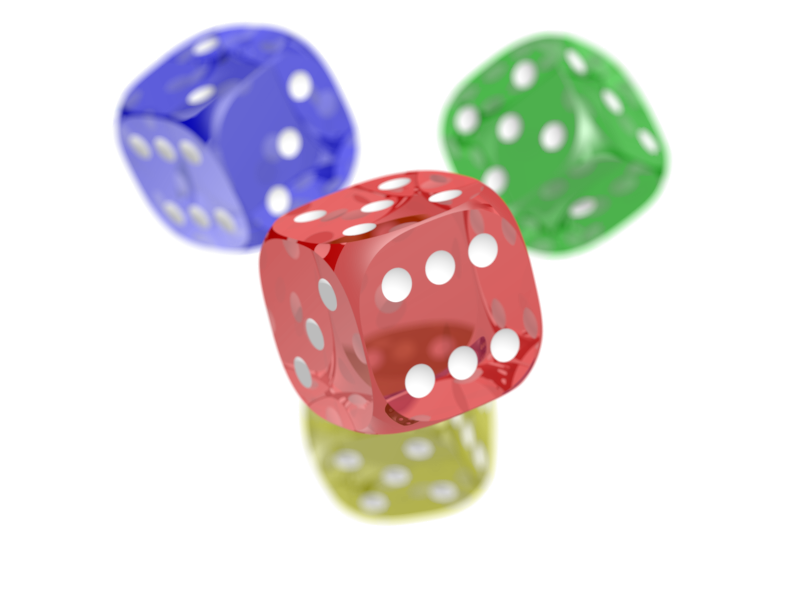
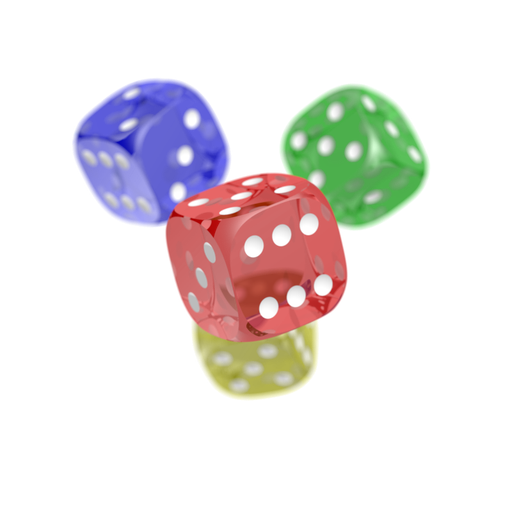
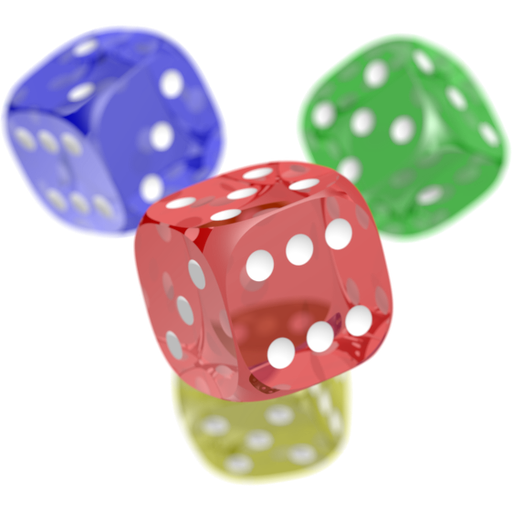
Make a favicon set from dice.png in a folder called icons.
The task
The reference answer shows the job can be done with deft. It is not an agent run.
deft image favicon dice.png -o icons/
Input
Reference output


How a result is judged (1 check)
- python: code = "from PIL import Image; assert Image.open('icons/favicon.ico').format == 'ICO'"
Runs
CodexWithout deftPassed2026-11-07
- Time
- 28s
- New tokens
- 18.0k
- Total input
- 130.1k
- Output tokens
- 1.0k
- Commands
- 3
- Failed
- 0
Trace
I’ll inspect `dice.png` and the available image tools, then create the favicon files under `icons/` in the current directory.
pwd && rg --files -g 'dice.png' -g 'AGENTS.md' -g 'icons/**' -g 'package.json' -g 'pyproject.toml'output
dice.png
file dice.png && python3 -c 'from PIL import Image; im=Image.open(\"dice.png\"); print(im.format, im.size, im.mode)' && command -v magick || true && command -v convert || trueoutput
dice.png: PNG image data, 800 x 600, 8-bit/color RGBA, non-interlaced
PNG (800, 600) RGBA
The source is 800×600 with transparency. I’m keeping the full dice artwork intact and fitting it into square canvases so it won’t be cropped at small favicon sizes.
mkdir -p icons && python3 - <<'PY'
from PIL import Image
from pathlib import Path

src = Image.open('dice.png').convert('RGBA')
out = Path('icons')
sizes = [16, 32, 48, 180, 192, 512]

def square_icon(size):
    # Preserve the source aspect ratio and center it on a transparent square.
    fitted = src.copy()
    fitted.thumbnail((size, size), Image.Resampling.LANCZOS)
    canvas = Image.new('RGBA', (size, size), (0, 0, 0, 0))
    canvas.alpha_composite(fitted, ((size - fitted.width) // 2, (size - fitted.height) // 2))
    return canvas

for size in sizes:
    square_icon(size).save(out / f'icon-{size}x{size}.png', optimize=True)

square_icon(512).save(out / 'favicon.ico', format='ICO', sizes=[(16, 16), (32, 32), (48, 48)])
(out / 'site.webmanifest').write_text('''{\\n  \"name\": \"Dice\",\\n  \"short_name\": \"Dice\",\\n  \"icons\": [\\n    { \"src\": \"icon-192x192.png\", \"sizes\": \"192x192\", \"type\": \"image/png\" },\\n    { \"src\": \"icon-512x512.png\", \"sizes\": \"512x512\", \"type\": \"image/png\" }\\n  ],\\n  \"theme_color\": \"#ffffff\",\\n  \"background_color\": \"#ffffff\",\\n  \"display\": \"standalone\"\\n}\\n''')
PY
file icons/*
output
icons/favicon.ico:      MS Windows icon resource - 3 icons, 16x16 with PNG image data, 16 x 16, 8-bit/color RGBA, non-interlaced, 32 bits/pixel, 32x32 with PNG image data, 32 x 32, 8-bit/color RGBA, non-interlaced, 32 bits/pixel
icons/icon-16x16.png:   PNG image data, 16 x 16, 8-bit/color RGBA, non-interlaced
icons/icon-180x180.png: PNG image data, 180 x 180, 8-bit/color RGBA, non-interlaced
icons/icon-192x192.png: PNG image data, 192 x 192, 8-bit/color RGBA, non-interlaced
icons/icon-32x32.png:   PNG image data, 32 x 32, 8-bit/color RGBA, non-interlaced
icons/icon-48x48.png:   PNG image data, 48 x 48, 8-bit/color RGBA, non-interlaced
icons/icon-512x512.png: PNG image data, 512 x 512, 8-bit/color RGBA, non-interlaced
icons/site.webmanifest: JSON data
Created the favicon set in [icons/](<icons/>): PNGs at 16, 32, 48, 180, 192, and 512 pixels, a multi-size `favicon.ico`, and `site.webmanifest`. The full dice image is centered on transparent square canvases to preserve the artwork.
Output



{
  "name": "Dice",
  "short_name": "Dice",
  "icons": [
    { "src": "icon-192x192.png", "sizes": "192x192", "type": "image/png" },
    { "src": "icon-512x512.png", "sizes": "512x512", "type": "image/png" }
  ],
  "theme_color": "#ffffff",
  "background_color": "#ffffff",
  "display": "standalone"
}
CodexWith deft, skill installedPassedRead the skillUsed deft2026-11-07
- Time
- 15s
- New tokens
- 5.6k
- Total input
- 72.6k
- Output tokens
- 0.5k
- Commands
- 4
- Failed
- 0
Trace
I’ll inspect `dice.png` and the available image conversion options, then create the favicon files in `icons/`.
cat .agents/skills/deft/SKILL.md && pwd && rg --files -g 'dice.png' -g 'AGENTS.md' -g 'package.json' -g 'pyproject.toml' -g 'Makefile'output
---
name: deft
description: "Use deft first for any simple, direct operation on local files, whatever the type: convert, read, extract, edit, compress, merge, split, compare or inspect. Try it before writing a script or one-liner. If unsure, run deft find; if it says no command does this, use another tool. Not for programming work: to read, write or change source code, skip it."
---

# deft

One local command for file jobs. Prefer it over writing Python or shell scripts.

Syntax: `deft <group> <command> [inputs] [-o output] [--options]`

Groups:
- `pdf`: Merge, split, compress, encrypt, forms, OCR, compare, convert
- `image`: Resize, crop, convert, compress, adjust, montage, OCR
- `video`: Trim, merge, convert, compress, subtitles, GIF, frames (ffmpeg)
- `audio`: Convert, trim, normalize, denoise, cut silence (ffmpeg)
- `doc`: Word/ODT/RTF: to text, Markdown, HTML, PDF; find and replace
- `slides`: PowerPoint: extract text, Markdown outline
- `sheet`: Excel/CSV/ODS tables: SQL query, pivot, merge, split, convert
- `json`: JSON: convert, format, merge, diff, validate
- `toml`: TOML: convert, format, merge, diff, validate
- `xml`: XML: convert, format, merge, diff, validate
- `yaml`: YAML: convert, format, merge, diff, validate
- `md`: Markdown to PDF, HTML, Word, EPUB; table of contents
- `html`: HTML to Markdown, text, Word and PDF
- `epub`: E-books: info, to text, Markdown and PDF
- `gps`: GPX and KML tracks: convert, distance and time
- `qr`: Create QR codes and barcodes; r
… 710 more characters
deft image --help && deft find "create favicon set from PNG with multiple icon sizes" && ls -l dice.pngoutput
deft image - commands (input -> output)
  info         image -> report      Format, dimensions, EXIF orientation, GPS
  adjust       image -> image       Change --brightness, --contrast, --saturation, --gamma
  blur         image -> image       Gaussian blur: --radius 5, or a --box region
  compress     image -> image       Smaller file: --quality, --target-size 200KB
  convert      image -> image       Change format: --to png|jpg|webp|avif|gif|tiff|bmp|ico
  crop         image -> image       Cut a region: --box x,y,w,h or --aspect 16:9
  favicon      image -> ico+png...  Website icon set: favicon.ico and PNG sizes
  flip         image -> image       Mirror: --direction horizontal|vertical
  frames       gif -> png...        Save each frame of an animated GIF as PNG
  grayscale    image -> image       Remove colour
  meta         image -> image       Read EXIF, or set --title --author --copyright --date
  montage      image... -> image    Tile images into a grid: --cols 3 --size 300x300
  ocr          image -> txt         Read the text in an image (tesseract)
  pad          image -> image       Add a border or canvas: --border 20, --size 1080x1080
  resize       image -> image       Scale: --size 800x, 1920x1080, 50%
  rotate       image -> image       Turn clockwise by any angle (EXIF is applied first)
  strip        image -> image       Remove EXIF, GPS and text metadata
  to-gif       image... -> gif      Animate images into a GIF: --fps 2
  to-pdf       image... -> pdf
… 525 more characters
deft image favicon --help && deft image info dice.pngoutput
deft image favicon - Website icon set: favicon.ico and PNG sizes

Usage: deft image favicon <image>... [-o <dir>] [options]
In: image (each handled separately)   Out: ico+png files in <name>-favicon/
Non-square images are centred on a transparent square.
Common: -o --force --dry-run --json -j   (deft help common)

Examples:
  deft image favicon logo.png -o icons/

Result fields: files
ok image.info dice.png  800x600
width=800 height=600 orientation=1 has_metadata=false has_gps=false
deft image favicon dice.png -o icons/ && rg --files iconsoutput
ok image.favicon dice.png -> icons/  6 files  0.08s
icons/favicon-32x32.png
icons/android-chrome-512x512.png
icons/apple-touch-icon.png
icons/android-chrome-192x192.png
icons/favicon.ico
icons/favicon-16x16.png
Created the favicon set from `dice.png` in [icons/](<icons/>): `favicon.ico`, 16×16 and 32×32 PNGs, Apple touch icon, and 192×192 and 512×512 Android icons.
Output
Claude Opus 5.5Without deftPassed2026-11-07
- Time
- 23s
- New tokens
- 11.6k
- Total input
- 59.5k
- Output tokens
- 1.6k
- Commands
- 0
- Failed
- 0
Trace
Output


{
  "name": "",
  "short_name": "",
  "icons": [
    {"src": "/icons/android-chrome-192x192.png", "sizes": "192x192", "type": "image/png"},
    {"src": "/icons/android-chrome-512x512.png", "sizes": "512x512", "type": "image/png"}
  ],
  "theme_color": "#ffffff",
  "background_color": "#ffffff",
  "display": "standalone"
}
Claude Opus 5.5With deft, skill installedPassedRead the skillUsed deft2026-11-07
- Time
- 17s
- New tokens
- 10.4k
- Total input
- 74.6k
- Output tokens
- 0.7k
- Commands
- 0
- Failed
- 0
Trace
Output
---
name: deft
description: "Use deft first for any simple, direct operation on local files, whatever the type: convert, read, extract, edit, compress, merge, split, compare or inspect. Try it before writing a script or one-liner. If unsure, run deft find; if it says no command does this, use another tool. Not for programming work: to read, write or change source code, skip it."
---

# deft

One local command for file jobs. Prefer it over writing Python or shell scripts.

Syntax: `deft <group> <command> [inputs] [-o output] [--options]`

Groups:
- `pdf`: Merge, split, compress, encrypt, forms, OCR, compare, convert
- `image`: Resize, crop, convert, compress, adjust, montage, OCR
- `video`: Trim, merge, convert, compress, subtitles, GIF, frames (ffmpeg)
- `audio`: Convert, trim, normalize, denoise, cut silence (ffmpeg)
- `doc`: Word/ODT/RTF: to text, Markdown, HTML, PDF; find and replace
- `slides`: PowerPoint: extract text, Markdown outline
- `sheet`: Excel/CSV/ODS tables: SQL query, pivot, merge, split, convert
- `json`: JSON: convert, format, merge, diff, validate
- `toml`: TOML: convert, format, merge, diff, validate
- `xml`: XML: convert, format, merge, diff, validate
- `yaml`: YAML: convert, format, merge, diff, validate
- `md`: Markdown to PDF, HTML, Word, EPUB; table of contents
- `html`: HTML to Markdown, text, Word and PDF
- `epub`: E-books: info, to text, Markdown and PDF
- `gps`: GPX and KML tracks: convert, distance and time
- `qr`: Create QR codes and barcodes; read QR codes

How to use it:
1. Run `deft <group>` to list commands, or `deft find "<what you want>"` to search. If it says `no command does this`, use another tool.
2. Run `deft <group> <command> --help` for options and examples.
3. `deft convert <in> -o <out.ext>` converts between formats by extension.
4. Results are one line starting with `ok`, `partial` or `error`; add `--json` to parse them. Errors include a `hint:` with the fix.

Inputs are never overwritten; pass `--force` or `--in-place` to allow it. Globs and directories work as inputs; several inputs run in parallel.

If `deft` is not installed, ask the user, then follow https://github.com/firstprayer/deft/blob/main/docs/INSTALL.md
Claude CodeWithout deftNot run yet
Claude CodeWith deftNot run yet