Evals / pdf / Organize pages
Rotate only one page
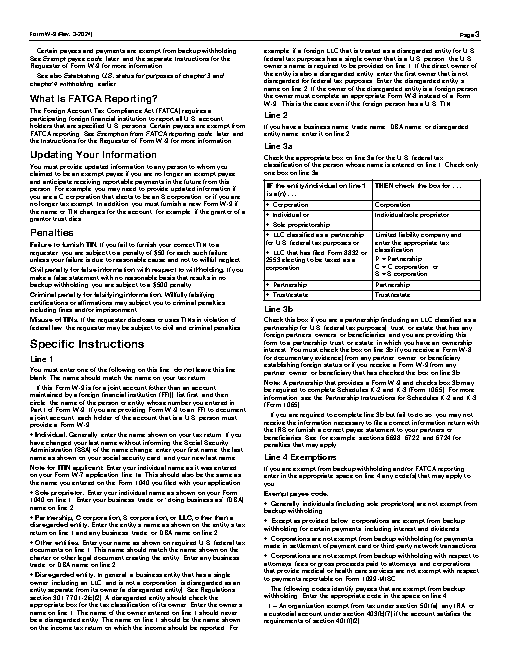
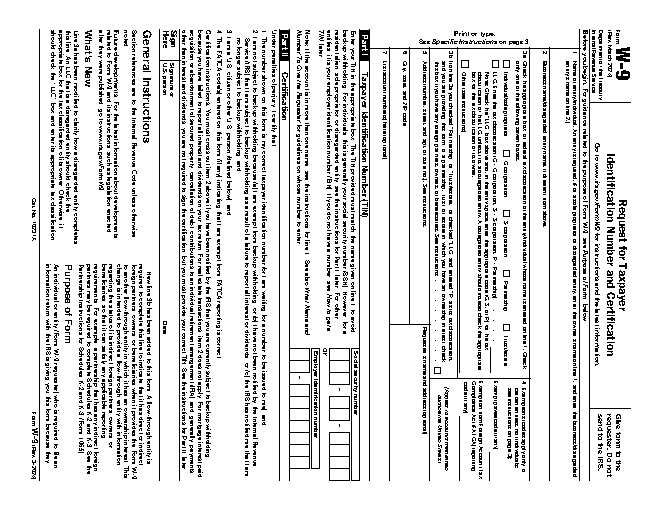
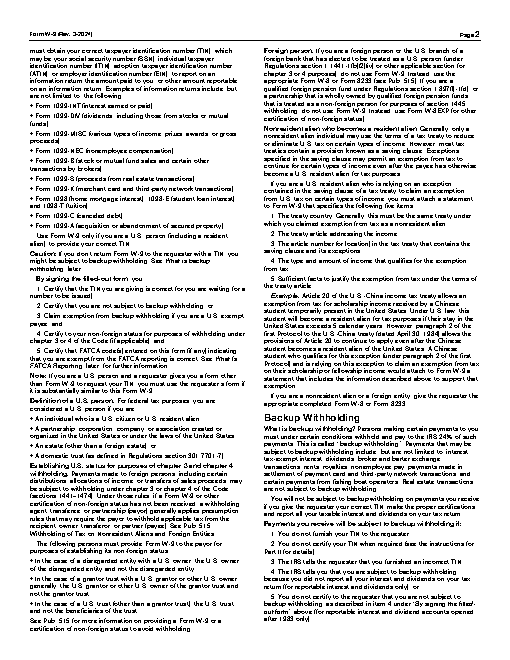
Page 1 of fw9.pdf should be turned 90 degrees clockwise; leave the other pages alone. Save as turned.pdf.
The task
The reference answer shows the job can be done with deft. It is not an agent run.
deft pdf rotate fw9.pdf --pages 1 --angle 90 -o turned.pdf
Input
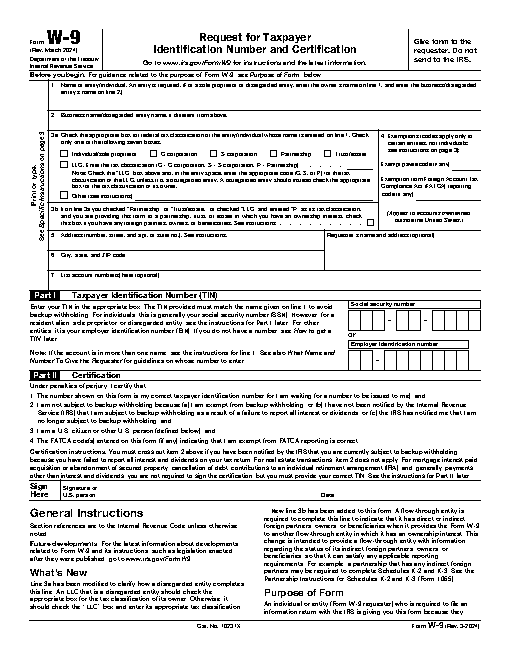
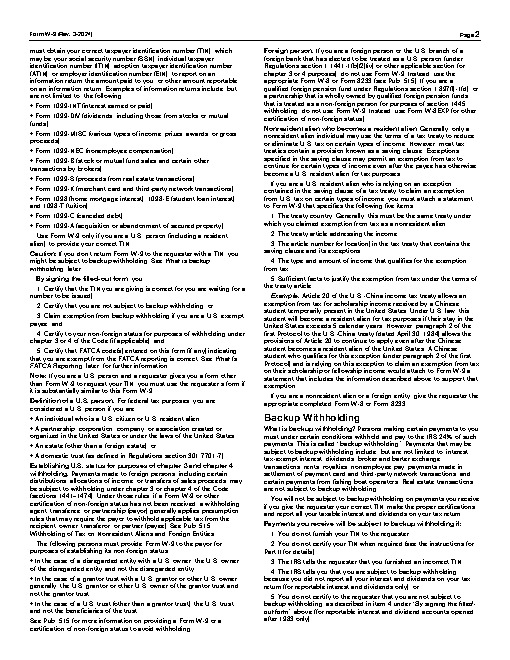
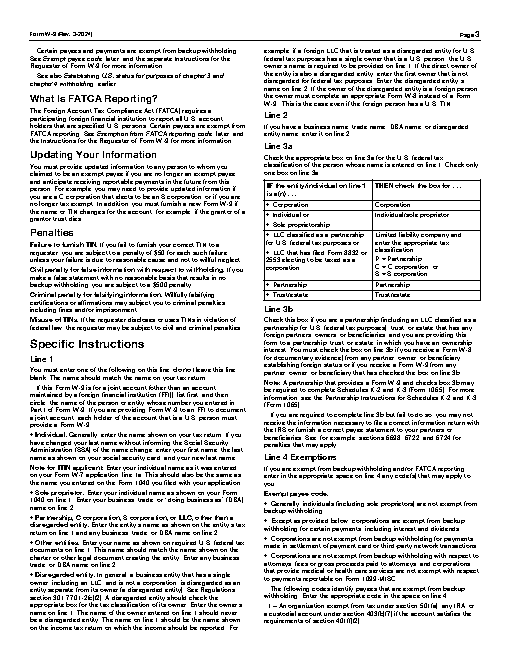
Reference output
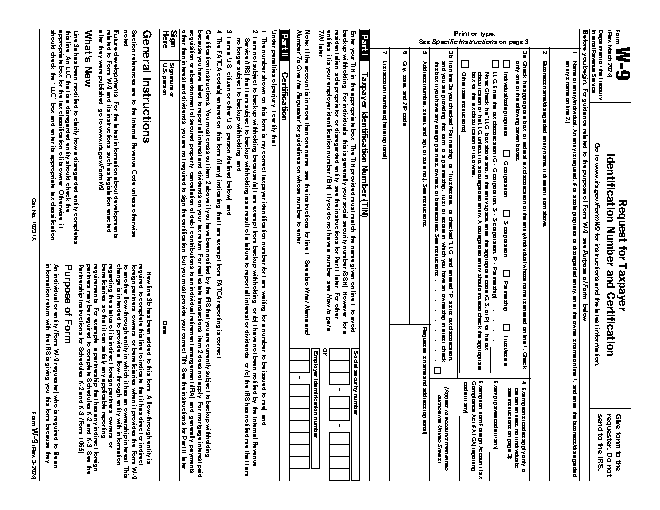
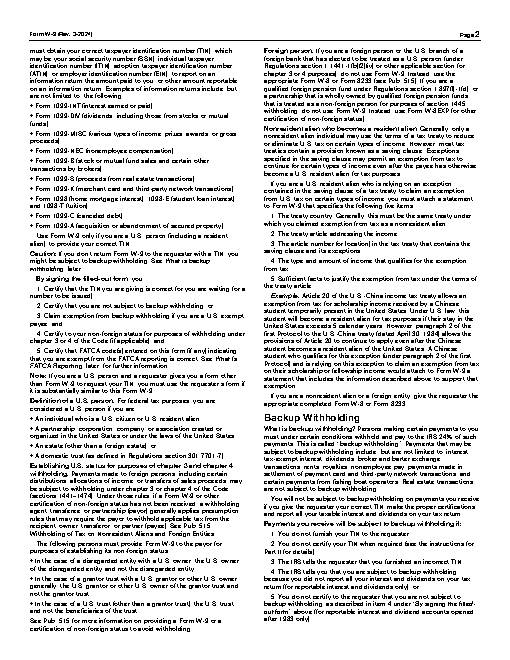
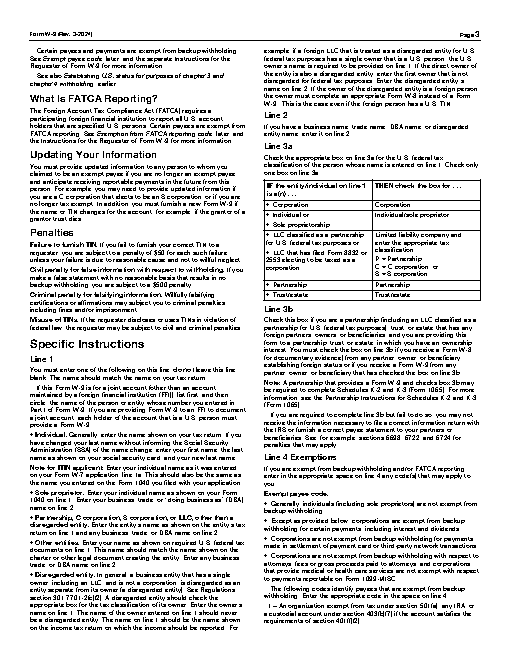
How a result is judged (3 checks)
- pdf_pages: file = "turned.pdf", pages = 6
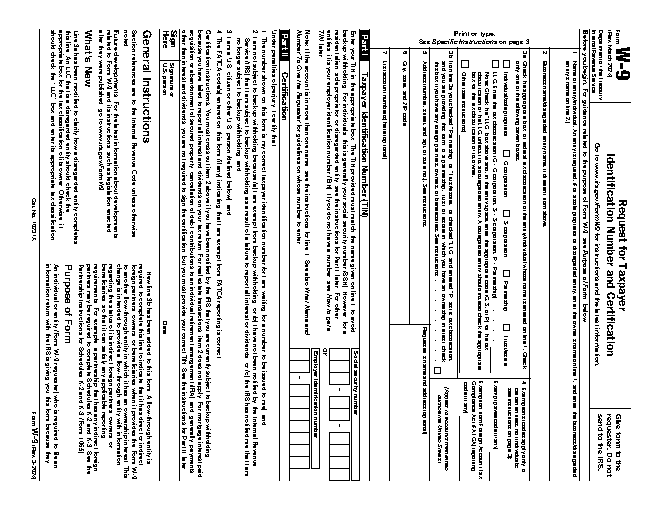
- pdf_page: file = "turned.pdf", page = 1, orientation = "landscape"
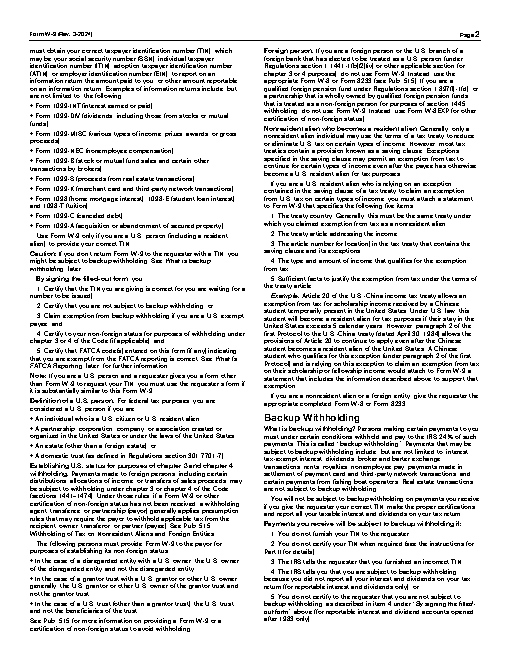
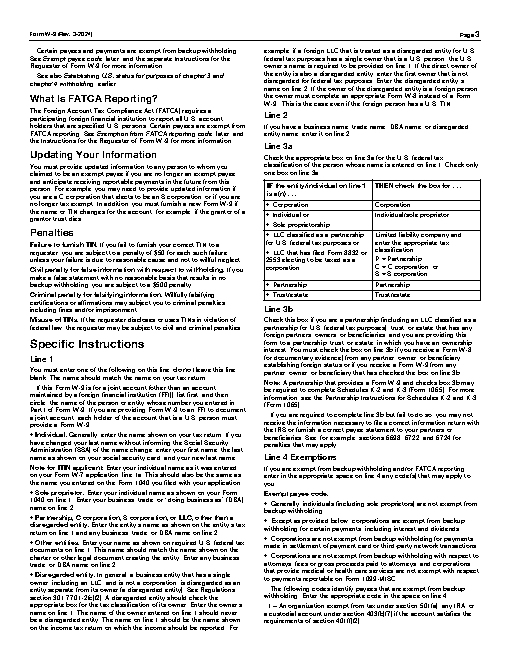
- pdf_page: file = "turned.pdf", page = 2, orientation = "portrait"
Runs
CodexWithout deftPassed2026-11-07
- Time
- 55s
- New tokens
- 10.0k
- Total input
- 144.0k
- Output tokens
- 1.2k
- Commands
- 8
- Failed
- 1
Trace
I’ll inspect the PDF tools available here, rotate only page 1, and save the result as `turned.pdf` in the current directory.
rg --files -g 'fw9.pdf' -g 'AGENTS.md' -g '*.pdf'output
fw9.pdf
python3 -c \"import importlib.util as u; print('pypdf', bool(u.find_spec('pypdf'))); print('PyPDF2', bool(u.find_spec('PyPDF2')))\"; command -v qpdf; command -v pdfjam; command -v pdftk; command -v mutool; command -v gsoutput
pypdf False
PyPDF2 False
/Library/TeX/texbin/pdfjam
/usr/local/bin/gs
pdfjam --help | head -50output
pdfjam is a shell-script front end to the LaTeX 'pdfpages' package (for
which, see http://www.ctan.org/tex-archive/macros/latex/contrib/pdfpages).

Usage: pdfjam [OPTIONS] [--] [FILE1 [SEL1]] [FILE2 [SEL2]]...
where
* 'FILE1' etc. are PDF files (JPG and PNG files are also allowed).  For
   input from /dev/stdin, use the special name '/dev/stdin' in place of any
   of FILE1, FILE2, etc: this can be mixed with 'real' files as needed, to
   allow input through a pipe (note that if /dev/stdin is connected to tty,
   an error results).  If 'FILE1' is absent, pdfjam will use '/dev/stdin'
   (and will use '-' for the page selection -- see next item).
* 'SEL1' is a page selection for FILE1, etc.
   To select all pages (the default) use '-'.  See the pdfpages manual for
   more details.  An example:
          ... file1 '{},2,4-6,9-' ...
   makes an empty page, followed by pages 2,4,5,6 of file1, followed by pages
   9 onwards (up to the end of file1).
   A page selection can be applied to more than one file, e.g.,
          ... file1 file2 file3 1-7 ...
   applies page selection '1-7' to all three files; but for example
          ... file1 file2 2- file3 1-7 ...
   would apply the page selection '2-' to file1 and file2, and '1-7'
   to file3.  A page selection applies to all the files *immediately*
   preceding it in the argument list.  A missing page selection defaults to
   '-'; this includes the case where 'FILE1' is absent and so /dev/stdin gets
   used by default.
* 'optio
… 1211 more characters
pdfinfo fw9.pdf | rg 'Pages|Page size'; pdfjam --help | rg -n 'angle|outfile' | headoutput
zsh:1: command not found: pdfinfo
46:                  files, see '--outfile'.  The --batch option cannot be
48:     --outfile PATH  (or -o PATH)
59:                  --outfile is either (a) a directory, or
169:Defaults for the options '--suffix', '--keepinfo', '--paper', '--outfile',
gs -q -dNODISPLAY -c '(fw9.pdf) (r) file runpdfbegin pdfpagecount = quit (exit 1)output
zsh:1: unmatched '
swift -e 'import PDFKit; print(\"PDFKit available\")'output
PDFKit available
swift -e 'import PDFKit; let d = PDFDocument(url: URL(fileURLWithPath:\"fw9.pdf\"))"'!; print(d.pageCount)'"'output
6
swift -e 'import PDFKit; let d = PDFDocument(url: URL(fileURLWithPath:\"fw9.pdf\"))"'!; let p = d.page(at:0)!; p.rotation = (p.rotation + 90) % 360; guard d.write(to: URL(fileURLWithPath:"turned.pdf")) else { fatalError("write failed") }; print("Saved '"\\(d.pageCount) pages\")'output
2026-11-06 17:22:40.963 swift-frontend[96129:6531361] PDFFormField with no corresponding Widget sharing the field name.
Saved 6 pages
Done. Page 1 of `fw9.pdf` is rotated 90° clockwise; the other five pages were left unchanged. Saved as [turned.pdf](turned.pdf).
Output
CodexWith deft, skill installedPassedRead the skillUsed deft2026-11-07
- Time
- 13s
- New tokens
- 7.0k
- Total input
- 70.6k
- Output tokens
- 0.3k
- Commands
- 4
- Failed
- 0
Trace
I’ll rotate page 1 clockwise and save the result as `turned.pdf` in the current directory. I’m checking the available PDF workflow and source file first.
cat .agents/skills/deft/SKILL.md && rg --files -g 'fw9.pdf' -g '*.pdf'output
---
name: deft
description: "Use deft instead of writing a script for file jobs: PDF merge/split/compress/watermark, image resize/convert/compress, video and audio trim/convert/compress, spreadsheets, Markdown to PDF/HTML, and YouTube downloads and subtitles."
---

# deft

One local command for file jobs. Prefer it over writing Python or shell scripts.

Syntax: `deft <group> <command> [inputs] [-o output] [--options]`

Groups:
- `pdf`: Merge, split, compress, encrypt, forms, OCR, compare, convert
- `image`: Resize, crop, convert, compress, filters, montage, OCR
- `video`: Trim, crop, speed, convert, compress, GIF, frames (ffmpeg)
- `audio`: Convert, trim, merge, fade, speed, tag, normalize (ffmpeg)
- `doc`: Word/ODT/RTF: to text, Markdown, HTML, PDF; find and replace
- `slides`: PowerPoint: extract text, Markdown outline, PDF handout
- `data`: JSON/YAML/TOML/XML: convert, query with jq syntax, merge, diff
- `sheet`: Excel/CSV/ODS tables: filter, sort, join, pivot, convert
- `md`: Markdown to PDF, HTML, Word, EPUB; table of contents
- `html`: HTML to Markdown, text, Word, PDF; screenshots
- `epub`: E-books: info, to text, Markdown and PDF
- `email`: EML files: headers, text, attachments
- `contact`: VCF address books: to and from CSV
- `calendar`: ICS calendars: to and from CSV
- `gps`: GPX and KML tracks: convert, distance and time
- `youtube`: Info, download, audio, subtitles, thumbnail (yt-dlp)
- `file`: Any file: hash, duplicates, batch rename, base64, encoding
- `qr`: Cre
… 736 more characters
deft find "rotate selected PDF page"output
pdf rotate  pdf -> pdf  Turn pages clockwise: --angle 90, --pages
pdf select  pdf -> pdf  Keep and reorder pages
deft pdf rotate --helpoutput
deft pdf rotate - Turn pages clockwise: --angle 90, --pages

Usage: deft pdf rotate <pdf>... [-o <pdf|dir>] [options]
In: pdf (each handled separately)   Out: pdf (default <name>.rotated.<ext>)

Options:
  --angle <number>             Degrees clockwise: 90, 180, 270, -90 (default 90)
  --pages <pages>              Pages to turn (default all)
  --password <text>            Password of an encrypted input
Common: -o --force --dry-run --json -j   (deft help common)

Examples:
  deft pdf rotate three-pages.pdf --angle 180 -o turned.pdf
  deft pdf rotate report.pdf --pages 1 --angle -90

Result fields: rotated
deft pdf rotate fw9.pdf --angle 90 --pages 1 -o turned.pdfoutput
ok pdf.rotate fw9.pdf -> turned.pdf 1 page turned 90 degrees 0.01s
Page 1 of `fw9.pdf` has been rotated 90° clockwise. The result is saved as [turned.pdf](turned.pdf).
Output
CodexWith deft, skill as AGENTS.mdPassed2026-11-05
- Time
- 13s
- New tokens
- 5.4k
- Total input
- 60.1k
- Output tokens
- 0.3k
- Commands
- 3
- Failed
- 0
Trace
I’ll check the available PDF commands, then rotate only page 1 and save the result as `turned.pdf` in the current directory.
deft pdfoutput
deft pdf - commands (input -> output)
  info         pdf -> report      Pages, size, metadata, fonts, images
  compress     pdf -> pdf         Make a PDF smaller: --level, --target-size 2MB
  delete       pdf -> pdf         Remove pages: --pages 2,5-7
  from-images  image... -> pdf    One page per image, in the given order
  from-md      md -> pdf          Typeset a PDF with headings, tables, code, images
  merge        pdf... -> pdf      Join PDFs in the given order
  number       pdf -> pdf         Add page numbers: --format "{n} of {total}"
  rotate       pdf -> pdf         Turn pages clockwise: --angle 90, --pages
  select       pdf -> pdf         Keep and reorder pages: --pages 3,1-2
  split        pdf -> pdf...      One file per page, or --every N, --ranges 1-3,4-
  to-images    pdf -> png|jpg...  Render pages to images: --dpi, --pages
  to-text      pdf -> txt         Extract text (form feed between pages)
  watermark    pdf -> pdf         Stamp text or an image on pages: --text, --image
More: deft pdf <command> --help
deft pdf rotate --helpoutput
deft pdf rotate - Turn pages clockwise: --angle 90, --pages

Usage: deft pdf rotate <pdf>... [-o <pdf|dir>] [options]
In: pdf (each handled separately)   Out: pdf (default <name>.rotated.<ext>)

Options:
  --angle <number>             Degrees clockwise: 90, 180, 270, -90 (default 90)
  --pages <pages>              Pages to turn (default all)
  --password <text>            Password of an encrypted input
Common: -o --force --dry-run --json -j   (deft help common)

Examples:
  deft pdf rotate three-pages.pdf --angle 180 -o turned.pdf
  deft pdf rotate report.pdf --pages 1 --angle -90

Result fields: rotated
deft pdf rotate fw9.pdf --pages 1 --angle 90 -o turned.pdfoutput
ok pdf.rotate fw9.pdf -> turned.pdf 1 page turned 90 degrees 0.01s
Page 1 of `fw9.pdf` is rotated 90° clockwise. The other pages are unchanged. Saved as [turned.pdf](turned.pdf).
Output
Its files were not kept in this run. The last line of the trace is its own report.
Claude Opus 5.5Without deftPassed2026-11-07
- Time
- 65s
- New tokens
- 17.6k
- Total input
- 164.5k
- Output tokens
- 3.6k
- Commands
- 0
- Failed
- 0
Trace
Output
Claude Opus 5.5With deft, skill installedPassedRead the skillUsed deft2026-11-07
- Time
- 10s
- New tokens
- 9.8k
- Total input
- 59.3k
- Output tokens
- 0.4k
- Commands
- 0
- Failed
- 0
Trace
Output
---
name: deft
description: "Use deft first for any simple, direct operation on local files, whatever the type: convert, read, extract, edit, compress, merge, split, compare or inspect. Try it before writing a script or one-liner. If unsure, run deft find; if it says no command does this, use another tool. Not for programming work: to read, write or change source code, skip it."
---

# deft

One local command for file jobs. Prefer it over writing Python or shell scripts.

Syntax: `deft <group> <command> [inputs] [-o output] [--options]`

Groups:
- `pdf`: Merge, split, compress, encrypt, forms, OCR, compare, convert
- `image`: Resize, crop, convert, compress, adjust, montage, OCR
- `video`: Trim, merge, convert, compress, subtitles, GIF, frames (ffmpeg)
- `audio`: Convert, trim, normalize, denoise, cut silence (ffmpeg)
- `doc`: Word/ODT/RTF: to text, Markdown, HTML, PDF; find and replace
- `slides`: PowerPoint: extract text, Markdown outline
- `sheet`: Excel/CSV/ODS tables: SQL query, pivot, merge, split, convert
- `json`: JSON: convert, format, merge, diff, validate
- `toml`: TOML: convert, format, merge, diff, validate
- `xml`: XML: convert, format, merge, diff, validate
- `yaml`: YAML: convert, format, merge, diff, validate
- `md`: Markdown to PDF, HTML, Word, EPUB; table of contents
- `html`: HTML to Markdown, text, Word and PDF
- `epub`: E-books: info, to text, Markdown and PDF
- `gps`: GPX and KML tracks: convert, distance and time
- `qr`: Create QR codes and barcodes; read QR codes

How to use it:
1. Run `deft <group>` to list commands, or `deft find "<what you want>"` to search. If it says `no command does this`, use another tool.
2. Run `deft <group> <command> --help` for options and examples.
3. `deft convert <in> -o <out.ext>` converts between formats by extension.
4. Results are one line starting with `ok`, `partial` or `error`; add `--json` to parse them. Errors include a `hint:` with the fix.

Inputs are never overwritten; pass `--force` or `--in-place` to allow it. Globs and directories work as inputs; several inputs run in parallel.

If `deft` is not installed, ask the user, then follow https://github.com/firstprayer/deft/blob/main/docs/INSTALL.md
Claude CodeWithout deftNot run yet
Claude CodeWith deftNot run yet