Evals / pdf / Stamp and number
Watermark with Chinese text
给 f1040.pdf 的每一页加上“机密”两个字的斜向水印,保存为 stamped.pdf。
In English: Add a diagonal watermark reading “Confidential” to every page of f1040.pdf and save it as stamped.pdf.
The task
The reference answer shows the job can be done with deft. It is not an agent run.
deft pdf watermark f1040.pdf --text 机密 -o stamped.pdf
Input
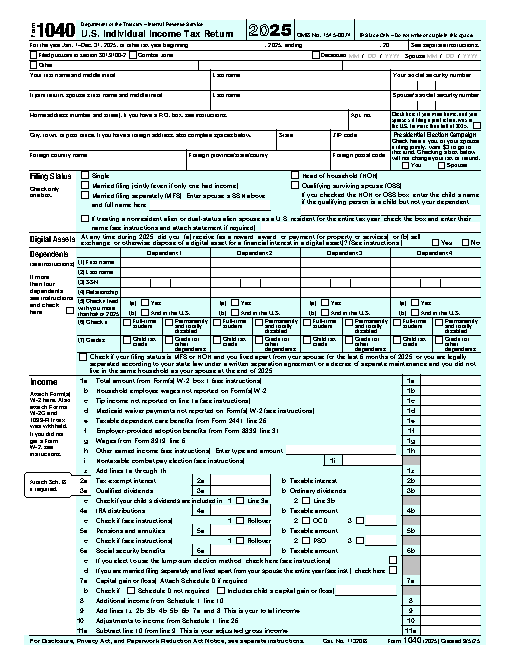
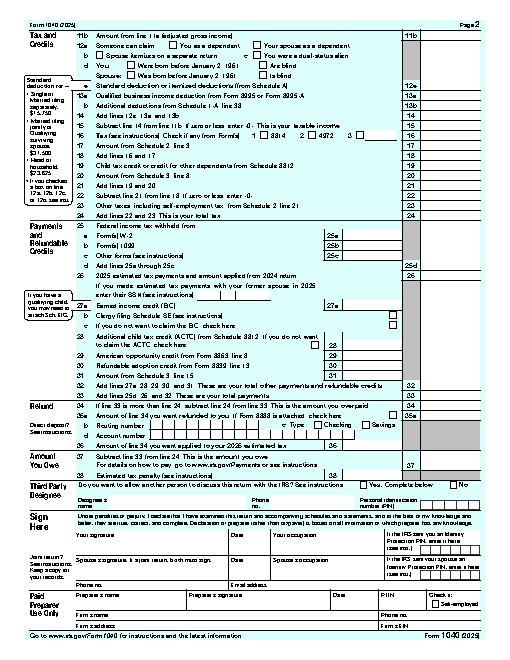
Reference output
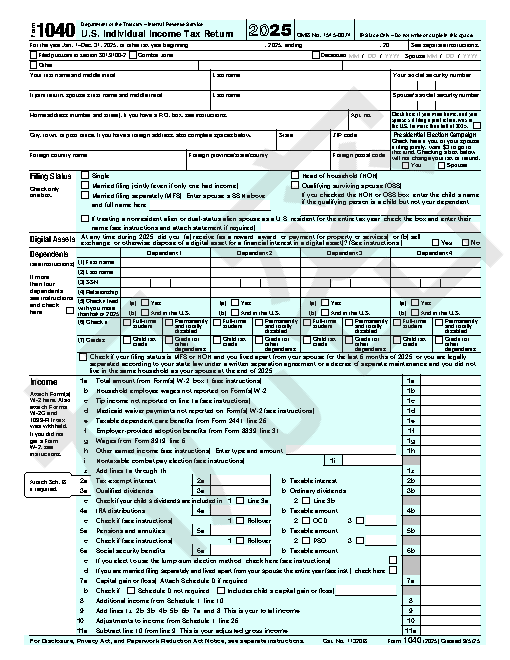
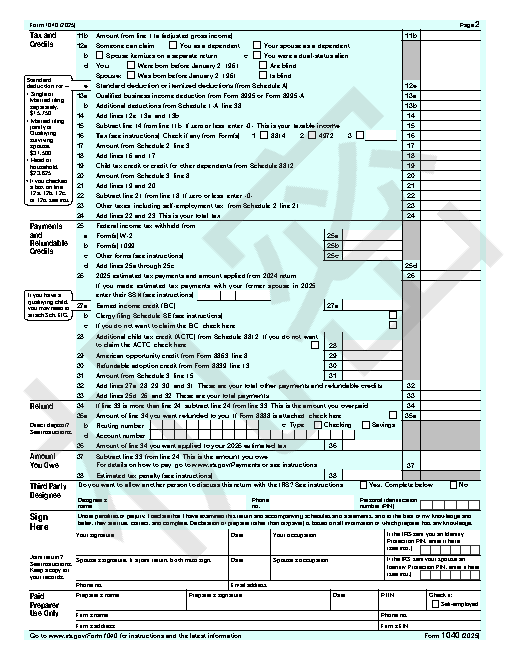
How a result is judged (2 checks)
- pdf_pages: file = "stamped.pdf", pages = 2
- pdf_changed: file = "stamped.pdf", from = "f1040.pdf", page = 2, min_difference = 0.05
Runs
CodexWithout deftPassed2026-11-07
- Time
- 86s
- New tokens
- 14.7k
- Total input
- 152.0k
- Output tokens
- 1.9k
- Commands
- 9
- Failed
- 3
Trace
我会先检查当前目录中的 PDF 文件和可用的 PDF 处理工具,然后生成带斜向“机密”水印的 `stamped.pdf`。
rg --files -g 'f1040.pdf' -g 'stamped.pdf' -g 'AGENTS.md' -g 'pyproject.toml' -g 'requirements*.txt'output
f1040.pdf
python3 - <<'PY'
import importlib.util
for m in ['pypdf','PyPDF2','reportlab','fitz']:
 print(m, bool(importlib.util.find_spec(m)))
PY
command -v pdftk || true
command -v qpdf || true
command -v gs || true
output
pypdf False
PyPDF2 False
reportlab False
fitz False
/usr/local/bin/gs
command -v pdftk; command -v mutool; command -v pdftoppm; command -v convert; command -v magick; ls -lh f1040.pdfoutput
-rw-r--r--@ 1 user staff 215K Nov 5 21:11 f1040.pdf
python3 -m pip install --user pypdf reportlab (exit 1)output
WARNING: Retrying (Retry(total=4, connect=None, read=None, redirect=None, status=None)) after connection broken by 'NewConnectionError('<pip._vendor.urllib3.connection.HTTPSConnection object at 0x106250d10>: Failed to establish a new connection: [Errno 8] nodename nor servname provided, or not known')': /simple/pypdf/
WARNING: Retrying (Retry(total=3, connect=None, read=None, redirect=None, status=None)) after connection broken by 'NewConnectionError('<pip._vendor.urllib3.connection.HTTPSConnection object at 0x1051efbf0>: Failed to establish a new connection: [Errno 8] nodename nor servname provided, or not known')': /simple/pypdf/
WARNING: Retrying (Retry(total=2, connect=None, read=None, redirect=None, status=None)) after connection broken by 'NewConnectionError('<pip._vendor.urllib3.connection.HTTPSConnection object at 0x1065a5d00>: Failed to establish a new connection: [Errno 8] nodename nor servname provided, or not known')': /simple/pypdf/
WARNING: Retrying (Retry(total=1, connect=None, read=None, redirect=None, status=None)) after connection broken by 'NewConnectionError('<pip._vendor.urllib3.connection.HTTPSConnection object at 0x1065a5f70>: Failed to establish a new connection: [Errno 8] nodename nor servname provided, or not known')': /simple/pypdf/
WARNING: Retrying (Retry(total=0, connect=None, read=None, redirect=None, status=None)) after connection broken by 'NewConnectionError('<pip._vendor.urllib3.connection.HTTPSConnection object at 0x1065a6180>: Failed to es
… 238 more characters
系统里有 Ghostscript,但没有常见的 PDF 编辑库;我会用 macOS 自带的 PDFKit 给每页添加可见的斜向文字水印,并保存为目标文件。
ls -lh stamped.pdf 2>&1; file stamped.pdf 2>&1output
ls: stamped.pdf: No such file or directory
stamped.pdf: cannot open `stamped.pdf' (No such file or directory)
swift <tmp> f1040.pdf stamped.pdf (exit 134)output
*** Terminating app due to uncaught exception 'NSUnknownKeyException', reason: '[<PDFAnnotation 0x10be5bbc0> setValue:forUndefinedKey:]: this class is not key value coding-compliant for the key rotation.'
*** First throw call stack:
(
	0   CoreFoundation                      0x00000001880dd8ec __exceptionPreprocess + 176
	1   libobjc.A.dylib                     0x0000000187bb6418 objc_exception_throw + 88
	2   CoreFoundation                      0x00000001880f8ec4 _CFBundleGetValueForInfoKey + 0
	3   Foundation                          0x000000018a26164c -[NSObject(NSKeyValueCoding) setValue:forKey:] + 324
	4   ???                                 0x0000000116db06cc 0x0 + 4678420172
	5   swift-frontend                      0x0000000100fb44c8 _ZN4llvm3orc9runAsMainEPFiiPPcENS_8ArrayRefINSt3__112basic_stringIcNS6_11char_traitsIcEENS6_9allocatorIcEEEEEENS6_8optionalINS_9StringRefEEE + 908
	6   swift-frontend                      0x0000000100ec6be0 _ZN5swift8SwiftJIT7runMainEN4llvm8ArrayRefINSt3__112basic_stringIcNS3_11char_traitsIcEENS3_9allocatorIcEEEEEE + 628
	7   swift-frontend                      0x0000000100ed40d4 _ZN5swift14RunImmediatelyERNS_16CompilerInstanceERKNSt3__16vectorINS2_12basic_stringIcNS2_11char_traitsIcEENS2_9allocatorIcEEEENS7_IS9_EEEERKNS_12IRGenOptionsERKNS_10SILOptionsEONS2_10unique_ptrI	8   swift-frontend                      0x0000000100e4e7c4 _ZL35processCommandLineAndRunImmediatelyRN5swift16CompilerInstanceEONSt3__110unique_ptrINS_9SILModuleENS2_14def
… 5814 more characters
cat > <tmp> <<'SWIFT'
import Foundation
import PDFKit
import AppKit

let inputURL = URL(fileURLWithPath: CommandLine.arguments[1])
let outputURL = URL(fileURLWithPath: CommandLine.arguments[2])
guard let doc = PDFDocument(url: inputURL) else { fatalError(\"Cannot open input PDF\") }
for i in 0..<doc.pageCount {
    guard let page = doc.page(at: i) else { continue }
    let box = page.bounds(for: .mediaBox)
    let w = min(box.width * 0.72, box.height * 0.72)
    let h: CGFloat = max(70, box.height * 0.14)
    let rect = CGRect(x: box.midX - w/2, y: box.midY - h/2, width: w, height: h)
    let annotation = PDFAnnotation(bounds: rect, forType: .freeText, withProperties: nil)
    annotation.contents = \"机密\"
    annotation.font = NSFont.boldSystemFont(ofSize: min(72, h * 0.62))
    annotation.fontColor = NSColor(calibratedRed: 0.8, green: 0.05, blue: 0.05, alpha: 0.28)
    annotation.color = .clear
    annotation.alignment = .center
    annotation.setValue(NSNumber(value: 315), forKey: \"rotation\")
    page.addAnnotation(annotation)
}
guard doc.write(to: outputURL) else { fatalError(\"Cannot write output PDF\") }
print(\"Stamped \\(doc.pageCount) pages\")
SWIFT
swift <tmp> f1040.pdf stamped.pdf
ls -lh stamped.pdf (exit 1)
output
*** Terminating app due to uncaught exception 'NSUnknownKeyException', reason: '[<PDFAnnotation 0x10fbe5810> setValue:forUndefinedKey:]: this class is not key value coding-compliant for the key rotation.'
*** First throw call stack:
(
	0   CoreFoundation                      0x00000001880dd8ec __exceptionPreprocess + 176
	1   libobjc.A.dylib                     0x0000000187bb6418 objc_exception_throw + 88
	2   CoreFoundation                      0x00000001880f8ec4 _CFBundleGetValueForInfoKey + 0
	3   Foundation                          0x000000018a26164c -[NSObject(NSKeyValueCoding) setValue:forKey:] + 324
	4   ???                                 0x000000011673c6cc 0x0 + 4671653580
	5   swift-frontend                      0x0000000104d944c8 _ZN4llvm3orc9runAsMainEPFiiPPcENS_8ArrayRefINSt3__112basic_stringIcNS6_11char_traitsIcEENS6_9allocatorIcEEEEEENS6_8optionalINS_9StringRefEEE + 908
	6   swift-frontend                      0x0000000104ca6be0 _ZN5swift8SwiftJIT7runMainEN4llvm8ArrayRefINSt3__112basic_stringIcNS3_11char_traitsIcEENS3_9allocatorIcEEEEEE + 628
	7   swift-frontend                      0x0000000104cb40d4 _ZN5swift14RunImmediatelyERNS_16CompilerInstanceERKNSt3__16vectorINS2_12basic_stringIcNS2_11char_traitsIcEENS2_9allocatorIcEEEENS7_IS9_EEEERKNS_12IRGenOptionsERKNS_10SILOptionsEONS2_10unique_ptrI	8   swift-frontend                      0x0000000104c2e7c4 _ZL35processCommandLineAndRunImmediatelyRN5swift16CompilerInstanceEONSt3__110unique_ptrINS_9SILModuleENS2_14def
… 5857 more characters
rg 'static let rotation|case rotation' /Library/Developer/CommandLineTools/SDKs/MacOSX.sdk/System/Library/Frameworks/PDFKit.framework/Modules/PDFKit.swiftmodule 2>/dev/null | headsed -i '' '/setValue(NSNumber(value: 315)/d' <tmp> swift <tmp> f1040.pdf stamped.pdf ls -lh stamped.pdfoutput
2026-11-06 17:17:23.898 swift-frontend[93867:6513676] PDFFormField with no corresponding Widget sharing the field name.
Stamped 2 pages
-rw-r--r--@ 1 user  staff   444K Nov  6 17:17 stamped.pdf
已为 `f1040.pdf` 的 2 页添加“机密”水印,并保存为 [stamped.pdf](stamped.pdf)。水印已添加,但当前 PDFKit 处理未能设置旋转角度,因此文字是水平的,不是斜向的。
Output
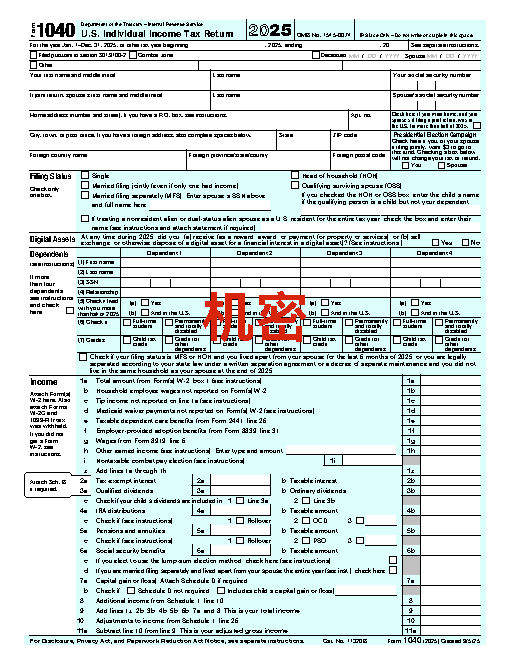
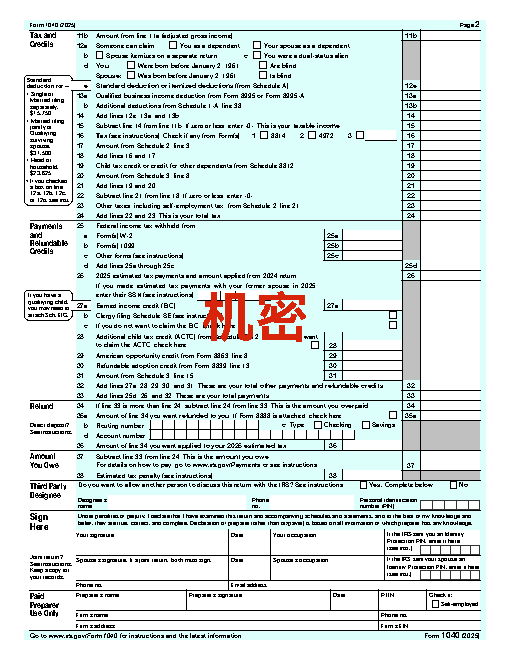
CodexWith deft, skill installedPassedRead the skillUsed deft2026-11-07
- Time
- 16s
- New tokens
- 8.3k
- Total input
- 71.2k
- Output tokens
- 0.5k
- Commands
- 4
- Failed
- 0
Trace
我会先查看目录里的 PDF 和 deft 技能说明,再按要求生成 `stamped.pdf`。
cat .agents/skills/deft/SKILL.md && rg --files -g 'f1040.pdf' -g 'stamped.pdf'output
---
name: deft
description: "Use deft instead of writing a script for file jobs: PDF merge/split/compress/watermark, image resize/convert/compress, video and audio trim/convert/compress, spreadsheets, Markdown to PDF/HTML, and YouTube downloads and subtitles."
---

# deft

One local command for file jobs. Prefer it over writing Python or shell scripts.

Syntax: `deft <group> <command> [inputs] [-o output] [--options]`

Groups:
- `pdf`: Merge, split, compress, encrypt, forms, OCR, compare, convert
- `image`: Resize, crop, convert, compress, filters, montage, OCR
- `video`: Trim, crop, speed, convert, compress, GIF, frames (ffmpeg)
- `audio`: Convert, trim, merge, fade, speed, tag, normalize (ffmpeg)
- `doc`: Word/ODT/RTF: to text, Markdown, HTML, PDF; find and replace
- `slides`: PowerPoint: extract text, Markdown outline, PDF handout
- `data`: JSON/YAML/TOML/XML: convert, query with jq syntax, merge, diff
- `sheet`: Excel/CSV/ODS tables: filter, sort, join, pivot, convert
- `md`: Markdown to PDF, HTML, Word, EPUB; table of contents
- `html`: HTML to Markdown, text, Word, PDF; screenshots
- `epub`: E-books: info, to text, Markdown and PDF
- `email`: EML files: headers, text, attachments
- `contact`: VCF address books: to and from CSV
- `calendar`: ICS calendars: to and from CSV
- `gps`: GPX and KML tracks: convert, distance and time
- `youtube`: Info, download, audio, subtitles, thumbnail (yt-dlp)
- `file`: Any file: hash, duplicates, batch rename, base64, encoding
- `qr`: Cre
… 738 more characters
deft find "PDF watermark"output
pdf watermark pdf -> pdf Stamp text or an image on pages
deft pdf watermark --helpoutput
deft pdf watermark - Stamp text or an image on pages

Usage: deft pdf watermark <pdf>... [-o <pdf|dir>] [options]
In: pdf (each handled separately)   Out: pdf (default <name>.watermarked.<ext>)
Any script works. Latin text stays selectable; other scripts are drawn as an image.

Options:
  --text <text>                Watermark text
  --image <path>               Watermark image (PNG with transparency works best)
  --opacity <n>                Opacity in percent (default 20)
  --angle <number>             Rotation in degrees, counter-clockwise (default 45)
  --position <position>        Where on the page (default center)
  --color <color>              Text color (default gray)
  --font-size <number>         Text size in points (default: fits the page)
  --font <text>                Font family for non-Latin text
  --scale <number>             Image width as a fraction of the page width (default 0.5)
  --pages <pages>              Pages to stamp (default all)
  --password <text>            Password of an encrypted input
Common: -o --force --dry-run --json -j   (deft help common)

Examples:
  deft pdf watermark three-pages.pdf --text DRAFT -o draft.pdf
  deft pdf watermark report.pdf --text SECRET --color red -o secret.pdf
  deft pdf watermark report.pdf --image photo-1.jpg --opacity 10 --angle 0 -o branded.pdf

Result fields: pages
Errors: BAD_VALUE
deft pdf watermark f1040.pdf --text '机密' --angle 45 -o stamped.pdfoutput
ok pdf.watermark f1040.pdf -> stamped.pdf 2 pages stamped 0.03s
已为 `f1040.pdf` 的两页加上斜向“机密”水印,保存为 [stamped.pdf](stamped.pdf)。
Output
CodexWith deft, skill as AGENTS.mdPassed2026-11-05
- Time
- 12s
- New tokens
- 9.2k
- Total input
- 46.0k
- Output tokens
- 0.3k
- Commands
- 2
- Failed
- 0
Trace
我会先检查当前目录里的文件和 `deft` 的 PDF 水印选项,然后直接生成 `stamped.pdf`。
pwd && rg --files -g 'f1040.pdf' -g 'stamped.pdf' -g 'AGENTS.md' && deft pdf watermark --helpoutput
AGENTS.md
f1040.pdf
deft pdf watermark - Stamp text or an image on pages: --text, --image

Usage: deft pdf watermark <pdf>... [-o <pdf|dir>] [options]
In: pdf (each handled separately)   Out: pdf (default <name>.watermarked.<ext>)
Any script works. Latin text stays selectable; other scripts are drawn as an image.

Options:
  --text <text>                Watermark text
  --image <path>               Watermark image (PNG with transparency works best)
  --opacity <n>                Opacity in percent (default 20)
  --angle <number>             Rotation in degrees, counter-clockwise (default 45)
  --position <position>        Where on the page (default center)
  --color <color>              Text color (default gray)
  --font-size <number>         Text size in points (default: fits the page)
  --font <text>                Font family for non-Latin text
  --scale <number>             Image width as a fraction of the page width (default 0.5)
  --pages <pages>              Pages to stamp (default all)
  --password <text>            Password of an encrypted input
Common: -o --force --dry-run --json -j   (deft help common)

Examples:
  deft pdf watermark three-pages.pdf --text DRAFT -o draft.pdf
  deft pdf watermark report.pdf --text 机密 -o secret.pdf
  deft pdf watermark report.pdf --image photo-1.jpg --opacity 10 --angle 0 -o branded.pdf

Result fields: pages
Errors: BAD_VALUE
deft pdf watermark f1040.pdf --text '机密' --angle 45 -o stamped.pdfoutput
ok pdf.watermark f1040.pdf -> stamped.pdf 2 pages stamped 0.06s
已为 `f1040.pdf` 的 2 页加上“机密”斜向水印,并保存为 [stamped.pdf](stamped.pdf)。
Output
Its files were not kept in this run. The last line of the trace is its own report.
Claude Opus 5.5Without deftPassed2026-11-07
- Time
- 49s
- New tokens
- 14.8k
- Total input
- 128.2k
- Output tokens
- 2.8k
- Commands
- 0
- Failed
- 0
Trace
Output
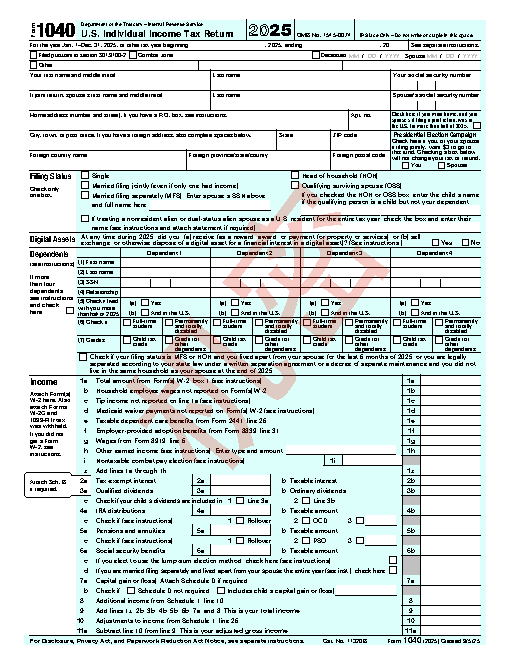
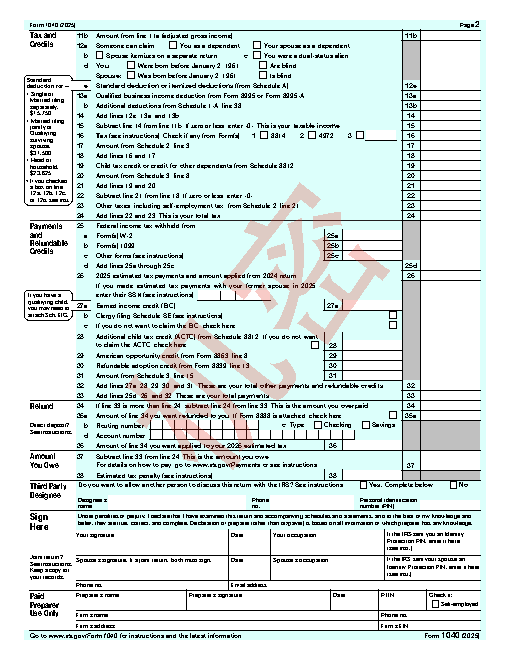
Claude Opus 5.5With deft, skill installedPassedRead the skillUsed deft2026-11-07
- Time
- 25s
- New tokens
- 14.7k
- Total input
- 128.9k
- Output tokens
- 1.2k
- Commands
- 0
- Failed
- 0
Trace
Output
---
name: deft
description: "Use deft first for any simple, direct operation on local files, whatever the type: convert, read, extract, edit, compress, merge, split, compare or inspect. Try it before writing a script or one-liner. If unsure, run deft find; if it says no command does this, use another tool. Not for programming work: to read, write or change source code, skip it."
---

# deft

One local command for file jobs. Prefer it over writing Python or shell scripts.

Syntax: `deft <group> <command> [inputs] [-o output] [--options]`

Groups:
- `pdf`: Merge, split, compress, encrypt, forms, OCR, compare, convert
- `image`: Resize, crop, convert, compress, adjust, montage, OCR
- `video`: Trim, merge, convert, compress, subtitles, GIF, frames (ffmpeg)
- `audio`: Convert, trim, normalize, denoise, cut silence (ffmpeg)
- `doc`: Word/ODT/RTF: to text, Markdown, HTML, PDF; find and replace
- `slides`: PowerPoint: extract text, Markdown outline
- `sheet`: Excel/CSV/ODS tables: SQL query, pivot, merge, split, convert
- `json`: JSON: convert, format, merge, diff, validate
- `toml`: TOML: convert, format, merge, diff, validate
- `xml`: XML: convert, format, merge, diff, validate
- `yaml`: YAML: convert, format, merge, diff, validate
- `md`: Markdown to PDF, HTML, Word, EPUB; table of contents
- `html`: HTML to Markdown, text, Word and PDF
- `epub`: E-books: info, to text, Markdown and PDF
- `gps`: GPX and KML tracks: convert, distance and time
- `qr`: Create QR codes and barcodes; read QR codes

How to use it:
1. Run `deft <group>` to list commands, or `deft find "<what you want>"` to search. If it says `no command does this`, use another tool.
2. Run `deft <group> <command> --help` for options and examples.
3. `deft convert <in> -o <out.ext>` converts between formats by extension.
4. Results are one line starting with `ok`, `partial` or `error`; add `--json` to parse them. Errors include a `hint:` with the fix.

Inputs are never overwritten; pass `--force` or `--in-place` to allow it. Globs and directories work as inputs; several inputs run in parallel.

If `deft` is not installed, ask the user, then follow https://github.com/firstprayer/deft/blob/main/docs/INSTALL.md
Claude CodeWithout deftNot run yet
Claude CodeWith deftNot run yet